

Active Flight
The Active Flight page is where you manage the flight you are about to fly or are currently tracking. Use this page to review the route, file your flight plan, connect telemetry, read the OFP, change aircraft before dispatch, take notes, start tracking, and finish or abort the flight.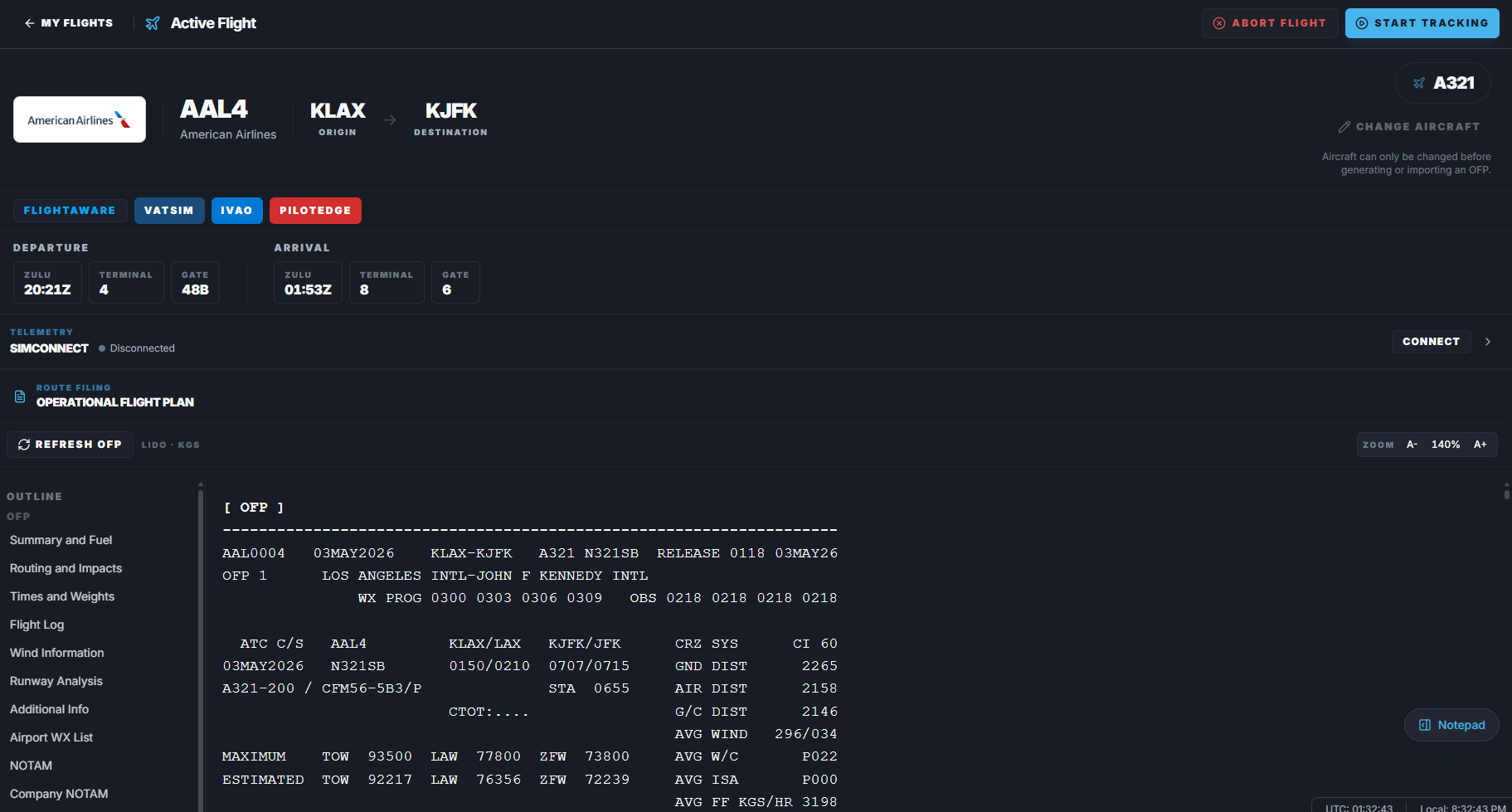
When to use Active Flight
Open Active Flight after you have a booked flight in My Flights. You can reach it from:- My Flights.
- A booked schedule route.
- A historical route booking.
- A manual flight.
- A VIP booking.
- A tour leg.
Flight header
The top of the page shows the main flight information. This can include:- Airline or operator.
- Flight number.
- Departure airport.
- Arrival airport.
- Aircraft type.
- Aircraft registration when available.
- Current tracking actions.
Departure and arrival information
The departure and arrival panels show key airport and schedule details. This can include:- Departure time in Zulu.
- Arrival time in Zulu.
- Terminal.
- Gate.
- Origin airport.
- Destination airport.
External flight tools
The Active Flight page includes quick buttons for external flight services. Depending on the flight, you may see buttons for:- FlightAware.
- VATSIM.
- IVAO.
- PilotEdge.
FlightAware
Use FlightAware when you want to check real-world flight information for the route or flight number. This is useful for comparing timing, route context, or real-world operation details when available.VATSIM
Use VATSIM to file or prefill the flight plan for online flying on VATSIM. Before filing, review the aircraft, route, departure, arrival, callsign, and remarks.IVAO
Use IVAO to file or prefill the flight plan for IVAO. Review the route and aircraft details before submitting.PilotEdge
Use PilotEdge if you are flying on PilotEdge and want to file or prepare the flight for that network. These buttons are shortcuts. Always review the information before submitting anything to an online network.Change aircraft
The Active Flight page can let you change the aircraft for the booking before the flight is dispatched. Use Change Aircraft if:- You booked a route with multiple valid aircraft options.
- You selected the wrong aircraft.
- You want to fly another compatible aircraft type.
- You need to match the aircraft you actually have loaded in the simulator.
Telemetry connection
The Telemetry section shows whether FlyHub is connected to your simulator. For PC tracking, this is where you confirm that FlyHub can read simulator data. You may see a telemetry provider such as:- SimConnect for Microsoft Flight Simulator.
- X-Plane plugin telemetry for X-Plane.
- The simulator is running.
- The correct aircraft is loaded.
- The FlyHub desktop app is open.
- The simulator connection is working.
- The X-Plane plugin is installed if you are using X-Plane.
- SimConnect is available if you are using Microsoft Flight Simulator.
Cabin Announcements
FlyHub Desktop can play automatic cabin announcements during an active flight. Use the Cabin Announcements panel in the Active Flight sidebar to choose the audio device, select or scan sound packs, manually play announcements, force announcement phases, adjust trigger behavior, and enable GSX integration for MSFS. For setup, custom pack folder rules, required file names, overlay usage, and every sidebar setting, see Cabin Announcements.Operational Flight Plan
The OFP section shows the route briefing for the flight. Use the OFP to prepare the flight before departure. The OFP can include:- Route summary.
- Fuel planning.
- Routing.
- Flight impacts.
- Times and weights.
- Flight log.
- Wind information.
- Runway analysis.
- Airport weather.
- NOTAM information.
- Company NOTAMs when available.
Refresh OFP
Use Refresh OFP when you need FlyHub to regenerate the operational flight plan. This is useful if:- The OFP is missing.
- The OFP failed to load.
- You changed planning information before the OFP was locked.
- You want to regenerate the dispatch package.
OFP units
The OFP can use your selected units. For example, fuel and weight may show in kilograms or pounds depending on your SimBrief/FlyHub unit setting. You can change your default SimBrief units in Settings.OFP outline
The outline on the left lets you jump through OFP sections quickly. Use it when you only need a specific part of the briefing, such as:- Summary and fuel.
- Routing.
- Times and weights.
- Flight log.
- Wind information.
- Runway analysis.
- Weather.
- NOTAMs.
OFP zoom
The zoom controls let you change the OFP text size. Use this if the OFP is too small or too large for your display. This is especially useful for users on smaller monitors or high-resolution screens.Notepad
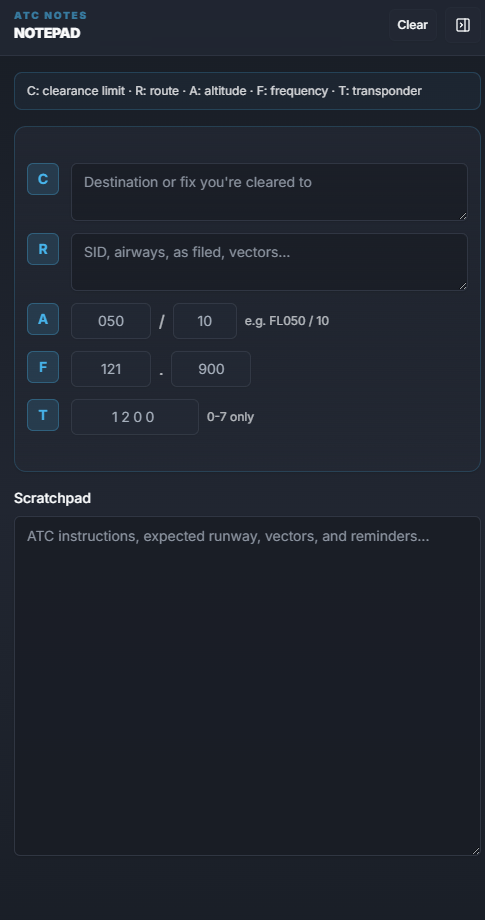
- ATC clearances.
- Assigned runway.
- SID or STAR changes.
- Cruise altitude.
- Step climbs.
- Fuel notes.
- VATSIM, IVAO, or PilotEdge instructions.
- Personal reminders.
- Approach briefing notes.
Start Tracking
Use Start Tracking when you are ready to begin the flight in FlyHub. Before clicking Start Tracking, check that:- The correct flight is open.
- The correct aircraft is selected.
- Your simulator is running.
- Telemetry is connected if you are using online tracking.
- The OFP is ready if you plan to use it.
- You are at the correct departure airport.
- You are ready to begin the flight flow.
During the flight
While the flight is active, FlyHub can track or display flight progress depending on the tracking mode. For online tracking, FlyHub can record:- Position.
- Altitude.
- Ground speed.
- Vertical speed.
- Heading.
- Aircraft state.
- Flight phases.
- Takeoff.
- Landing.
- Touchdown data.
- Telemetry events.
- Scoring-related events.
Console and Manual Offline Mode
If you fly on Xbox or PlayStation, or prefer not to use telemetry, choose Offline when starting the flight. Offline flights use the Active Flight page as a manual mission tracker. During the flight, record the required check-ins as the flight progresses:- Preflight.
- Pushback or departure preparation.
- Takeoff.
- Required route checkpoints.
- Landing.
- Parked or completed.
Finish Flight
When the flight is complete, FlyHub saves the result and creates a logbook entry. For online tracking:- Land and taxi in.
- Finish your normal shutdown or arrival flow.
- Use the Close Flight or Finish Flight action when FlyHub prompts you.
- Confirm the completion.
- FlyHub computes the score, saves the logbook entry, and updates XP.
- Record the required check-ins during the flight.
- Save the Parked or completed check-in.
- Open the debrief.
- Enter landing quality and any issues.
- Review any offline XP or plausibility warnings shown.
- Submit the debrief.
- Score.
- XP.
- Landing data.
- Penalties.
- Telemetry.
- Map path.
- Event markers.
- Flight details.
Abort Flight
Use Abort Flight only when you need to cancel the active flight. This is useful if:- You started the wrong flight.
- You selected the wrong booking.
- You need to stop before departure.
- You no longer want to continue the flight.
Flight Recovery After CTD
If your simulator crashes or closes mid-flight:- Reopen FlyHub as soon as you can.
- On the Dashboard or My Flights, look for the Recover Flight button.
- Click it to open the recovery flow.
- FlyHub restores the last known flight position and state when a recovery snapshot is available.
- Load the same aircraft in the simulator.
- Match the fuel and payload values shown by FlyHub as closely as possible.
- Spawn at the restored position, or as close as your simulator allows.
- Continue the flight and finish normally.
Overlay in the desktop app
When enabled in Settings, the simulator overlay can appear inside the simulator window. The overlay can show:- Tracking status.
- Landing feedback.
- Touchdown data.
- Close Flight prompt after arrival.
Common mistakes
- Starting tracking before the simulator is connected.
- Forgetting to check the selected aircraft.
- Generating an OFP before changing aircraft.
- Filing to VATSIM, IVAO, or PilotEdge without reviewing the prefilled flight plan.
- Ignoring the OFP fuel and route information.
- Forgetting to use the notepad for ATC changes.
- Aborting when you meant to finish.
- Finishing when the flight was not actually completed.
- Closing the simulator before closing the flight in FlyHub.
- Skipping offline check-ins when using Offline Mode.