

Calendar
Calendar lets you plan when to fly your Free Flight bookings. It shows a monthly roster, pending queue, selected-day panel, and route map. Career Mode uses a separate Career calendar and assignment rules.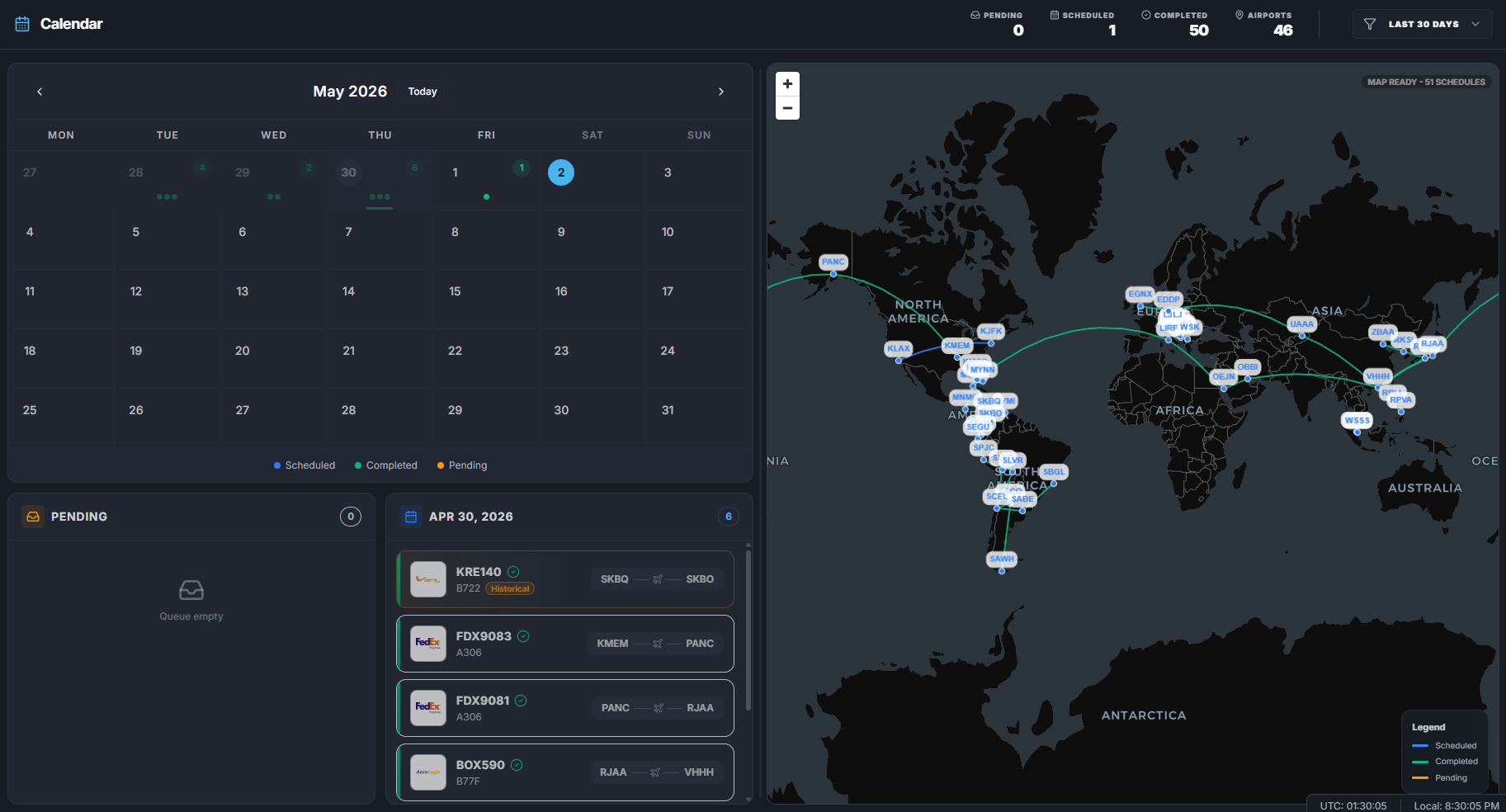
Monthly roster
The main calendar shows one month at a time. You can:- Move to the previous month.
- Move to the next month.
- Return to Today.
- Select a day.
- Flight count.
- Status dots.
- Today highlight.
- Selected-day highlight.
Status colors
Pending queue
Pending flights are bookings without a scheduled date. Use Pending when you know you want to fly a route but have not picked a date yet. If Pending is empty, the queue shows an empty state.Selected day panel
Click a day to open its flight list. The selected day panel shows flights assigned to that date. If the day is empty, you can drag a pending flight onto it.Moving flights
You can drag flights:- From Pending to a day.
- From one day to another day.
- From a day back to Pending.
Completed flights
Completed flights can appear on the calendar for history. Completed flights are not draggable. Calendar history may be filtered by recent periods such as 7 days, 30 days, 6 months, 1 year, all, or none. If you landed at an alternate airport, the completed route may use the logbook arrival airport when available.Route map
The map shows visible pending, scheduled, active, and completed routes. Route colors match the calendar state. Repeated routes and reverse routes may curve so they are easier to see. The map automatically fits the visible route area.Step-by-step scheduling
- Open Calendar.
- Find a flight in Pending.
- Drag it onto the day you want.
- Wait for the success message.
- Click that day to confirm the flight is listed.
- Open My Flights when you are ready to start it.
Common mistakes
- Trying to drag completed flights.
- Forgetting that Calendar only schedules the booking date; you still start the flight from My Flights.
- Looking for Career assignments on the Free Flight Calendar.