

Historical Routes
Historical Routes is a premium Free Flight feature. Use it to fly older routes, retired routes, historical airline versions, defunct carriers, and aircraft operations from past eras.When to use Historical Routes
Use Historical Routes when:- The route is older than the last 2 months.
- The route belongs to a retired schedule.
- The airline no longer operates the route.
- The airline no longer exists.
- The aircraft type is part of a historical operation.
Access
Historical Routes requires Captain. Free users see a premium feature screen.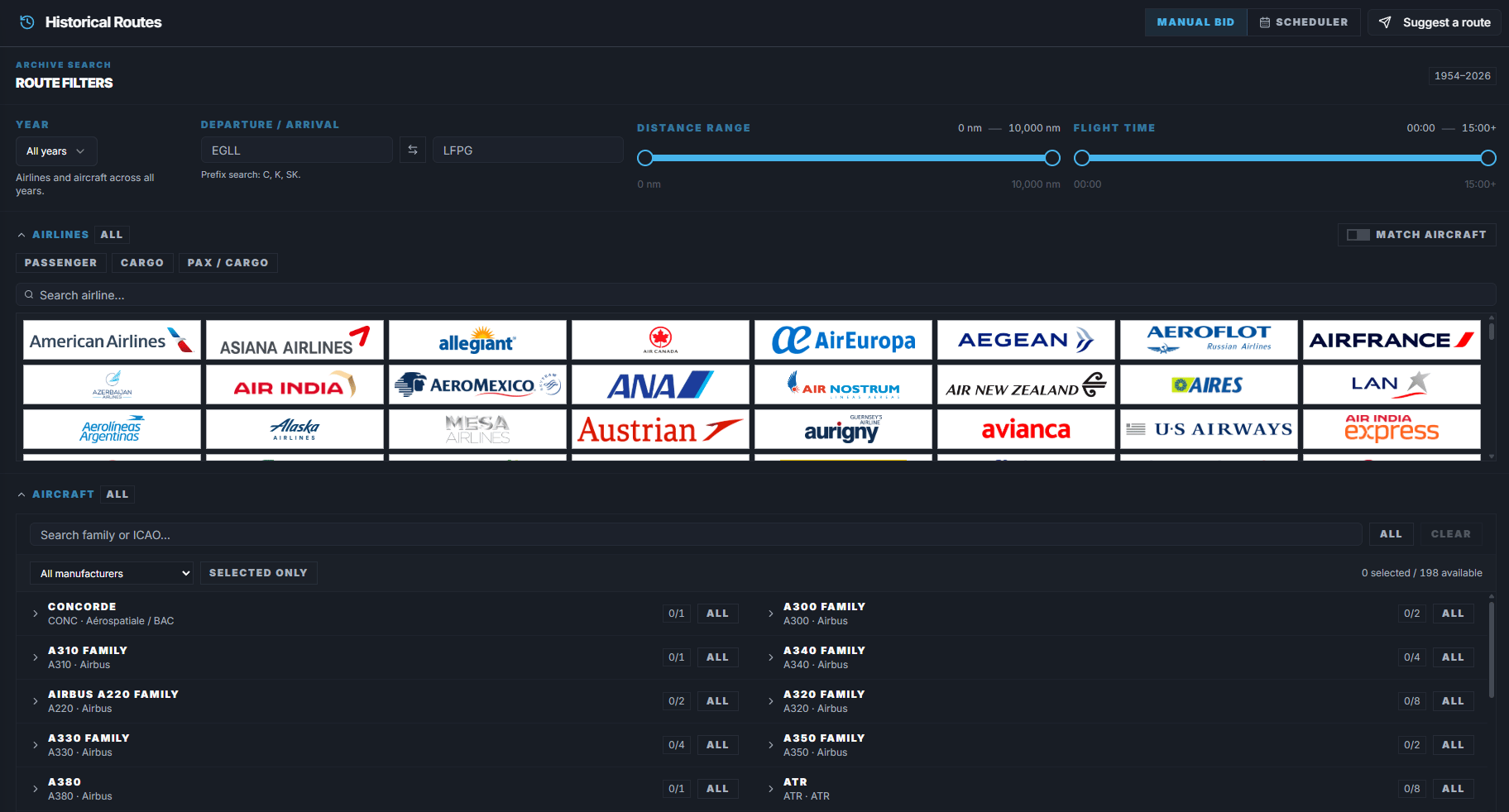
Modes
Historical Routes has two modes:
Weather Scout works with the historical route pool and then ranks matching routes by current weather. For the full guide, see Weather Scout.
Manual Bid filters
Year
Use Year to search a specific year or all years. When a year is selected, airline and aircraft options update for that historical data.Airline
Historical airline filters can include historical versions. This matters when an airline changed branding, merged, retired, or operated different aircraft in different eras.Airline type
Use airline type filters to narrow passenger, cargo, or mixed operations.Aircraft
Use Aircraft to filter historical routes by aircraft type. The aircraft list changes based on the selected year and airlines.Match aircraft
Match aircraft limits the airline list to airlines that operated your selected aircraft. Use it when you want a specific aircraft and only want compatible historical airlines.Departure and arrival
Enter full or partial ICAO codes. Use the swap button to reverse the route.Distance and flight time
Use Distance Range and Flight Time to narrow historical results to the kind of flight you want.Manual Bid step-by-step
- Open Historical Routes.
- Choose Manual Bid.
- Select a year or All years.
- Choose airlines or aircraft if needed.
- Enter departure and arrival filters if needed.
- Set distance and flight time filters if needed.
- Click Search Routes.
- Review route cards.
- Click Book.
- Choose an aircraft if FlyHub asks.
- Confirm the booking.
- Open My Flights to start it later.
Scheduler settings
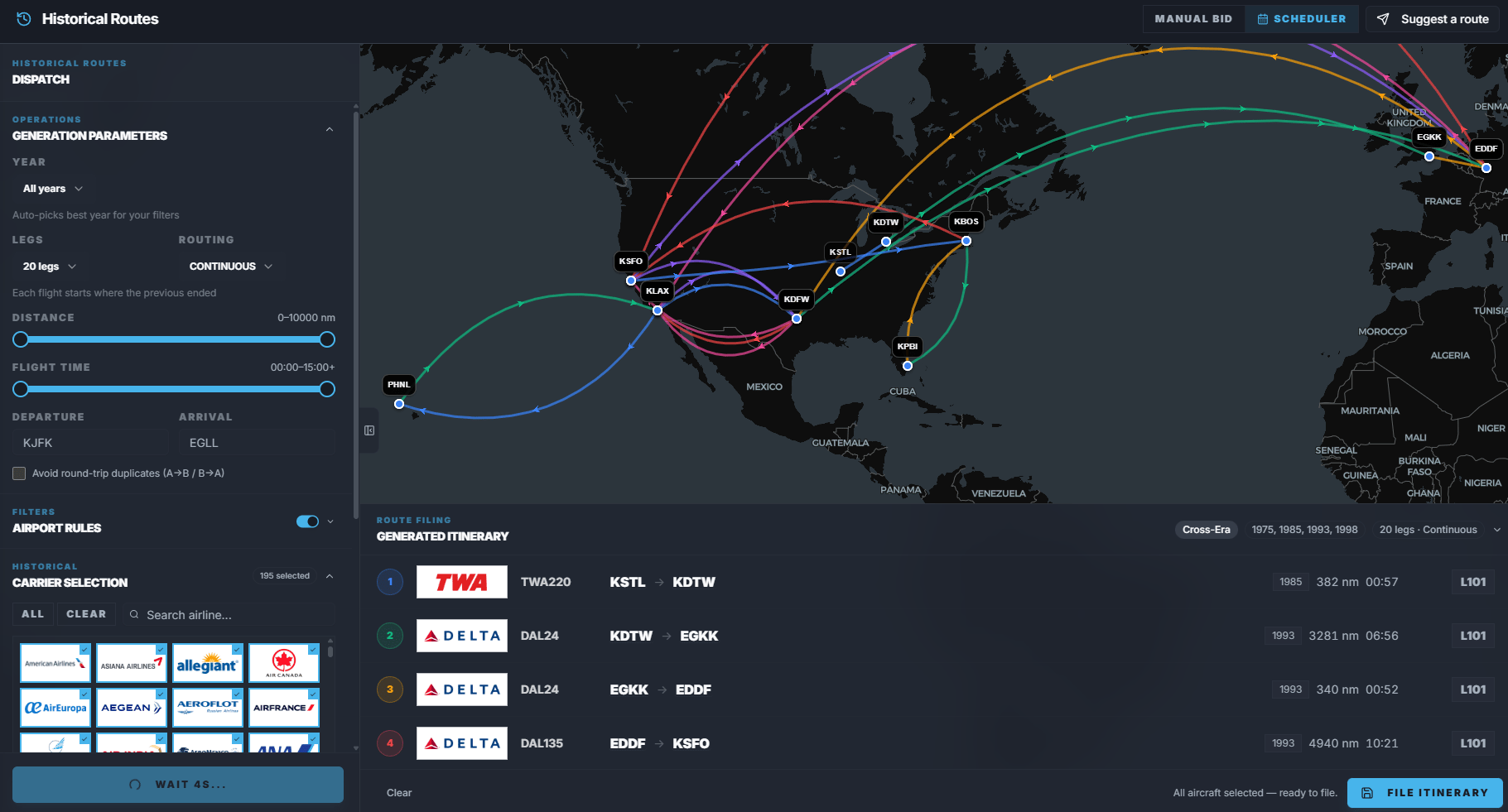
- Year or all-years behavior.
- Number of legs.
- Random, Continuous, or Roundtrip routing.
- Avoid round-trip duplicate pairs.
- Start airport.
- End airport.
- Round-trip hub.
- Airlines or historical airline versions.
- Aircraft.
- Distance range.
- Flight time range.
- Airport rules.
- Scenery preference from your Scenery Scanner airport list.
Historical Scheduler step-by-step
- Open Historical Routes.
- Choose Scheduler.
- Select the year or leave it broad if you want cross-era results.
- Select at least one airline or historical airline version.
- Choose number of legs.
- Choose Random, Continuous, or Roundtrip.
- Set start, end, or hub airport if needed.
- Choose aircraft filters if needed.
- Set distance and flight time ranges.
- Add included or excluded airports if needed.
- Choose scenery preference if needed.
- Generate the itinerary.
- Review warnings or partial itinerary messages.
- Select aircraft for each leg if required.
- Save the itinerary to My Flights.
Airport rules
Airport rules let you control which airports can appear. Included airports are airports FlyHub should try to use. Excluded airports are airports FlyHub must avoid. An airport cannot be both included and excluded. For roundtrip itineraries, the hub cannot be excluded.Scenery preference
Historical Scheduler uses the same scenery preference system as Schedules. If you use the Scenery Scanner, FlyHub can prefer or limit generated historical itineraries to airports from your scanned and manually added scenery list. Options can include:- Off: no scenery filtering.
- Prefer: FlyHub prefers airports you have scenery for.
- Only: FlyHub only uses airports found in your scenery list when possible.
Suggest a historical route
Use Historical Routes suggestions for older routes. Submit here when:- The route is older than 2 months.
- The airline, aircraft, or route belongs to a past era.
- The route should not be part of current Schedules.
Suggest a historical route step-by-step
- Click Suggest a route.
- Enter year flown.
- Enter airline ICAO.
- Enter origin ICAO.
- Enter destination ICAO.
- Enter flight number.
- Enter aircraft type or types.
- Add a proof link if available.
- Submit the suggestion.