

Live Map
Live Map shows active FlyHub traffic on a world map. Use it to watch your own flights and other visible pilots.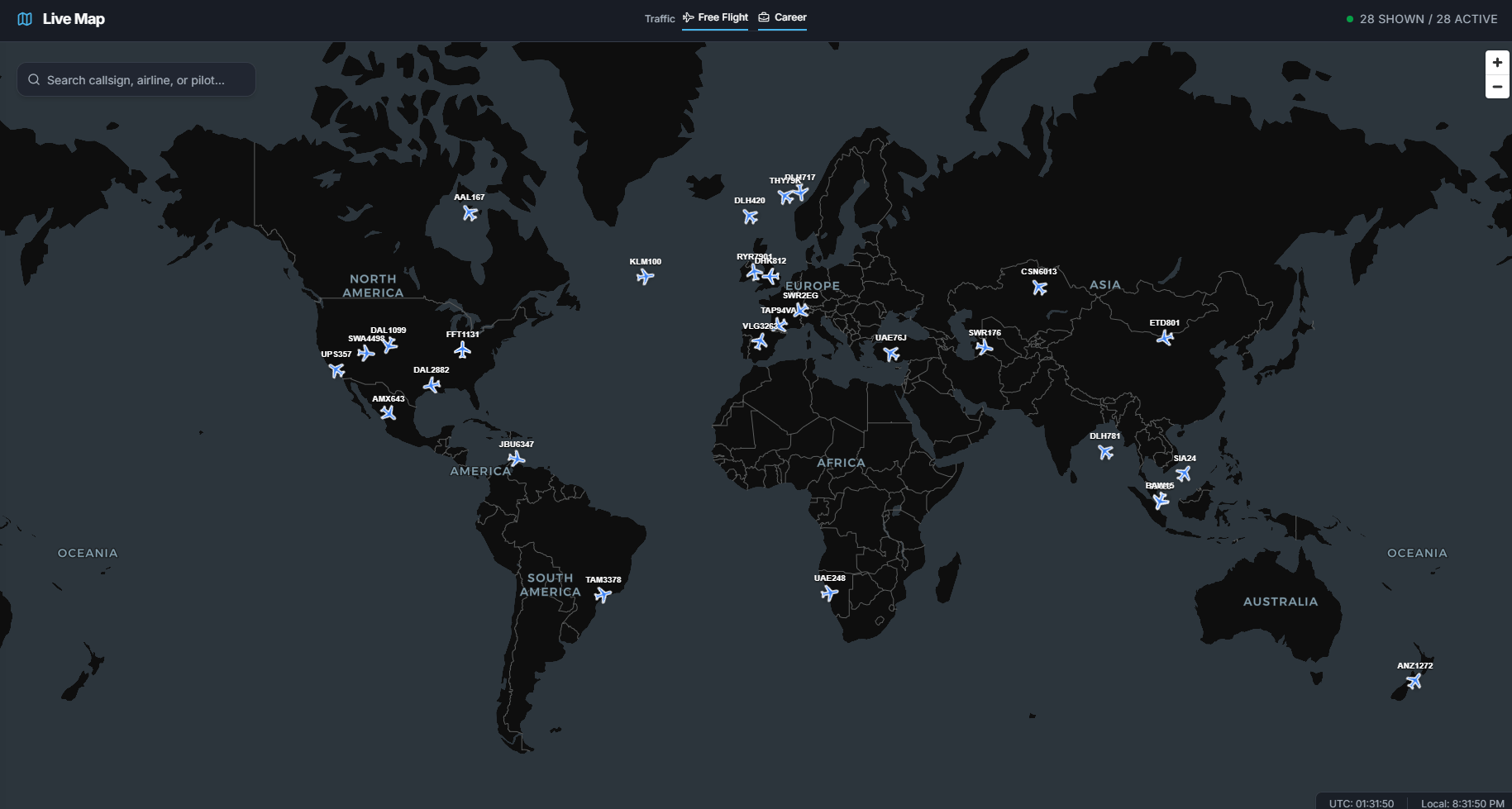
What Live Map shows
Live Map can show:- Free Flight traffic.
- Career traffic.
- Online tracked flights.
- Offline/manual flights with synthetic progress.
- Route lines.
- Flight trajectories.
- Pilot cards.
- Network badges when detected.
Traffic filters
The header lets you toggle:- Free Flight traffic.
- Career traffic.
Search
When no flight is selected, you can search. Search can match:- Callsign.
- Airline ICAO.
- Pilot name.
Selecting a flight
Click a plane marker to select it. The selected flight card can show:- Airline logo or ICAO.
- Callsign.
- Aircraft type.
- Historical badge when relevant.
- Origin and destination.
- Progress bar.
- Nautical miles flown.
- Nautical miles remaining.
- Pilot name and avatar.
- Tier label.
- Network banner when VATSIM or IVAO is detected.
Online flights
Online flights use recent simulator telemetry. They show:- Current position.
- Heading.
- Route progress.
- Trajectory when enough points exist.
- OFP route and waypoint labels when available.
Offline flights
Offline flights can appear on Live Map using offline progress. Because there is no live simulator telemetry, FlyHub estimates the position along the planned route. Offline flights may show:- Offline badge.
- Awaiting Check-In state.
- Estimated progress.
- Remaining distance.
- Current phase when available.
Map layers
The map can show:- Plane markers.
- Callsign labels.
- Origin and destination dots.
- Route line.
- Actual or estimated trajectory.
- OFP route and waypoint labels.
Refresh behavior
Live Map refreshes automatically. It refreshes more often when traffic is active and less often when the page is hidden or quiet. If a selected flight disappears or becomes stale, FlyHub clears the selection.Common mistakes
- Expecting offline flights to show real telemetry.
- Searching while a flight card is selected.
- Assuming every active flight is public or visible.
- Expecting a stale online flight to stay on the map forever.