

Generate a SimBrief OFP
FlyHub can generate a SimBrief OFP from My Flights. When the SimBrief flow succeeds, FlyHub can read your SimBrief Pilot ID from the new OFP and save it to Settings automatically.Before you start
Make sure you have:- A FlyHub account.
- A booked flight in My Flights.
- A SimBrief account.
Generate the OFP
- Open FlyHub Desktop.
- Go to My Flights.
- Open the flight you want to plan.
- Choose the SimBrief or OFP generation option.
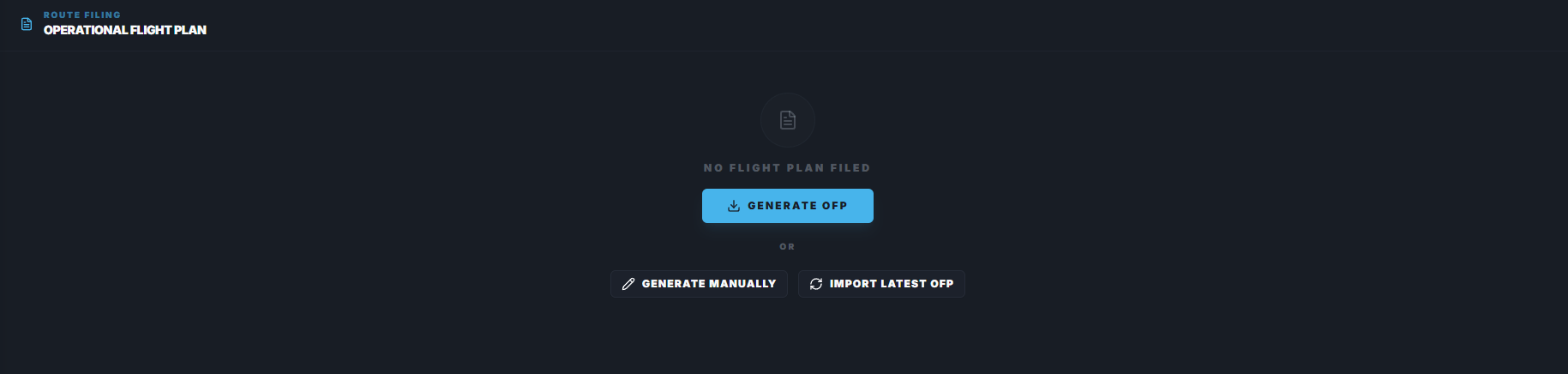
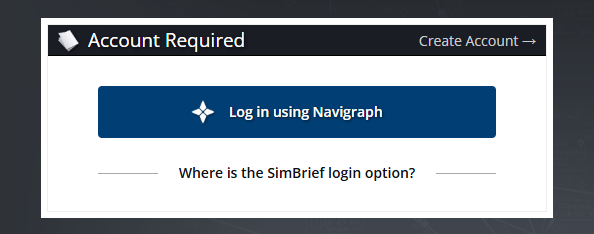
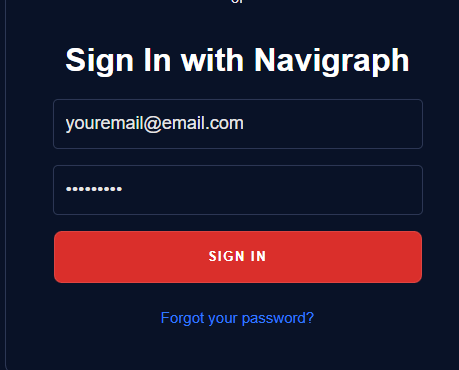
- Sign in to SimBrief when the SimBrief window opens.
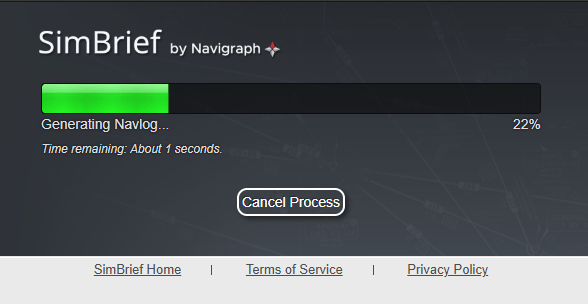
- Review the generated plan.
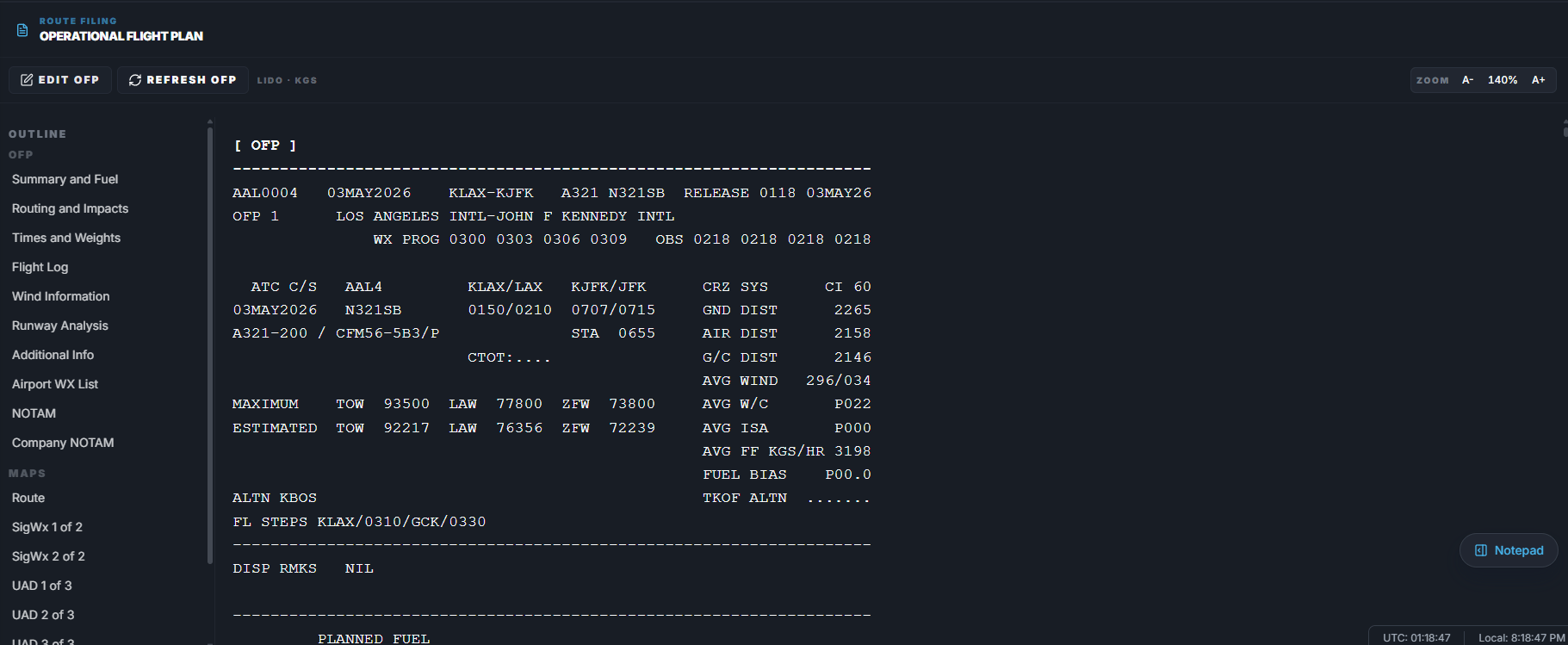
- Save or return to FlyHub when the flow is complete.
Custom airframe profiles
If you saved custom SimBrief airframe profiles in FlyHub, FlyHub may ask which airframe profile to use before generating the OFP. Choose Default to use the normal aircraft ICAO, such asA320 or B738.
Choose a saved profile to use that SimBrief airframe’s Internal ID instead. This is useful for aircraft variants such as Fenix A320 CFM, ToLiss A320 IAE, PMDG 737 variants, or other simulator-specific setups.
For setup instructions, see SimBrief Custom Airframe Profiles.
Pilot ID auto-fill
If your SimBrief Pilot ID is empty in Settings, FlyHub can fill it automatically after a successful OFP generation. This works because the generated OFP contains the SimBrief user ID. FlyHub reads that value and stores it in your profile for future flight plans.Sign in with email and password
If SimBrief or Navigraph opens a login window inside FlyHub Desktop, use your email and password login. Google, Apple, Microsoft, or other OAuth sign-in methods may fail inside the desktop app login window. Email and password login usually works. This is a Navigraph login-window issue, not a FlyHub issue.If OFP generation does not attach to your account
Try this:- Open Settings.
- Go to General.
- Check SimBrief Pilot ID.
- If it is empty, generate the OFP again and make sure you sign in during the SimBrief flow.
- If needed, manually enter your numeric SimBrief Pilot ID.
- Click Save Changes.
Units used for OFP generation
FlyHub uses your SimBrief Units setting from Settings > General. Choose Kilograms (KGS) or Pounds (LBS) before generating an OFP if you want the plan to use a specific unit system.