

Profile and Logbook
Your Free Flight profile is your pilot record. Use it to review your XP, rank, stats, badges, type ratings, achievements, passport, and every completed Free Flight logbook entry. Career Mode has its own career profile and career logbook. This page explains the normal Free Flight profile.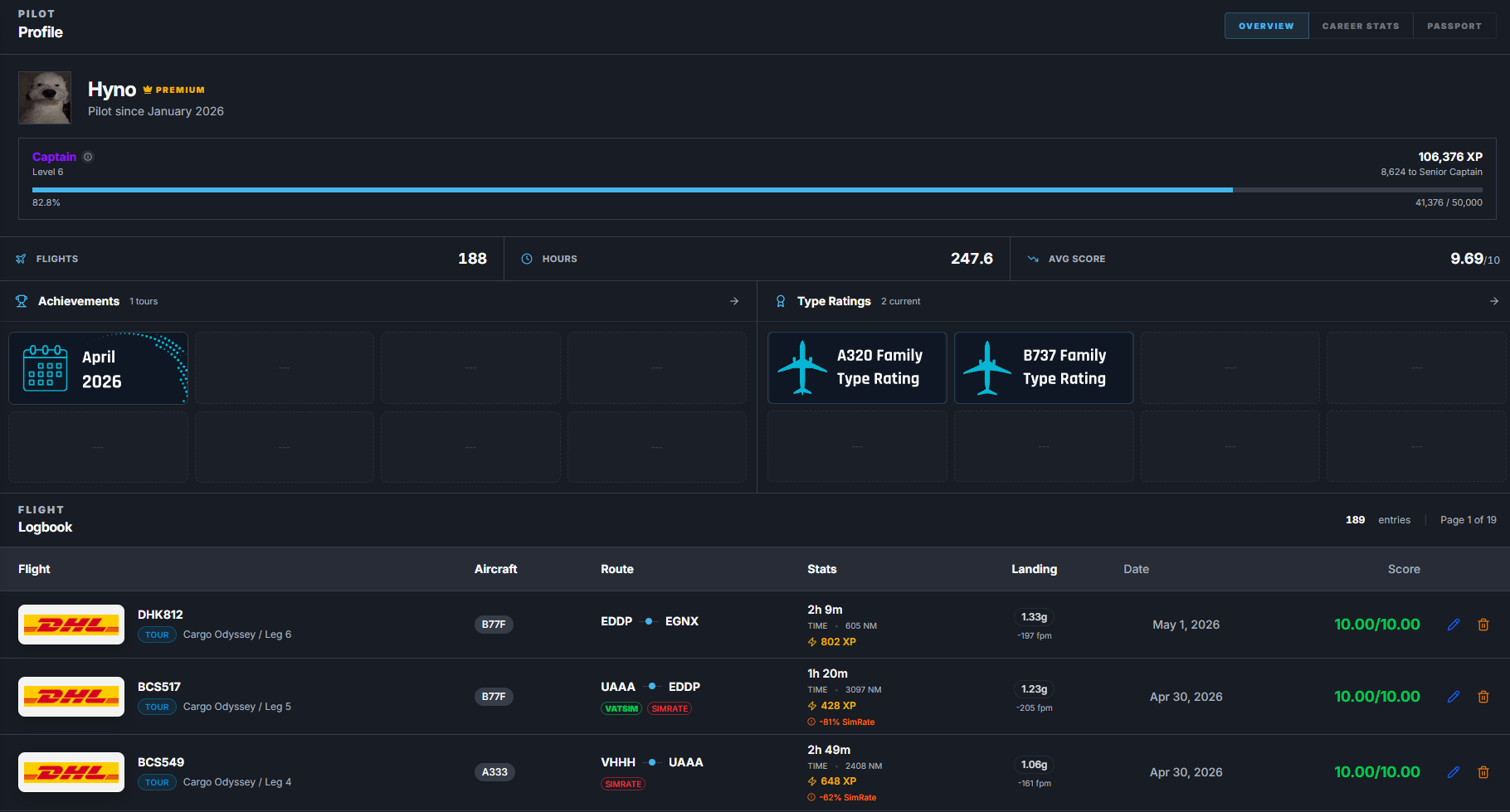
Opening your profile
In the desktop app:- Open the left sidebar.
- Click Profile.
Main profile overview
The Overview tab shows your pilot identity and core Free Flight progress. It can show:- Display name.
- Profile picture.
- Premium badge when you have Captain.
- Pilot since date.
- Current FlyHub rank.
- XP progress toward the next rank.
- Total Free Flight XP.
- Total flights.
- Total hours.
- Average score.
- Pinned achievement badges.
- Pinned type rating badges.
- Logbook entries.
XP and rank progress
Free Flight XP is used for your normal FlyHub rank. The profile shows:- Your current rank name.
- Your current level.
- Your total XP.
- XP needed for the next rank.
- A progress bar for the current rank.
Career Stats tab
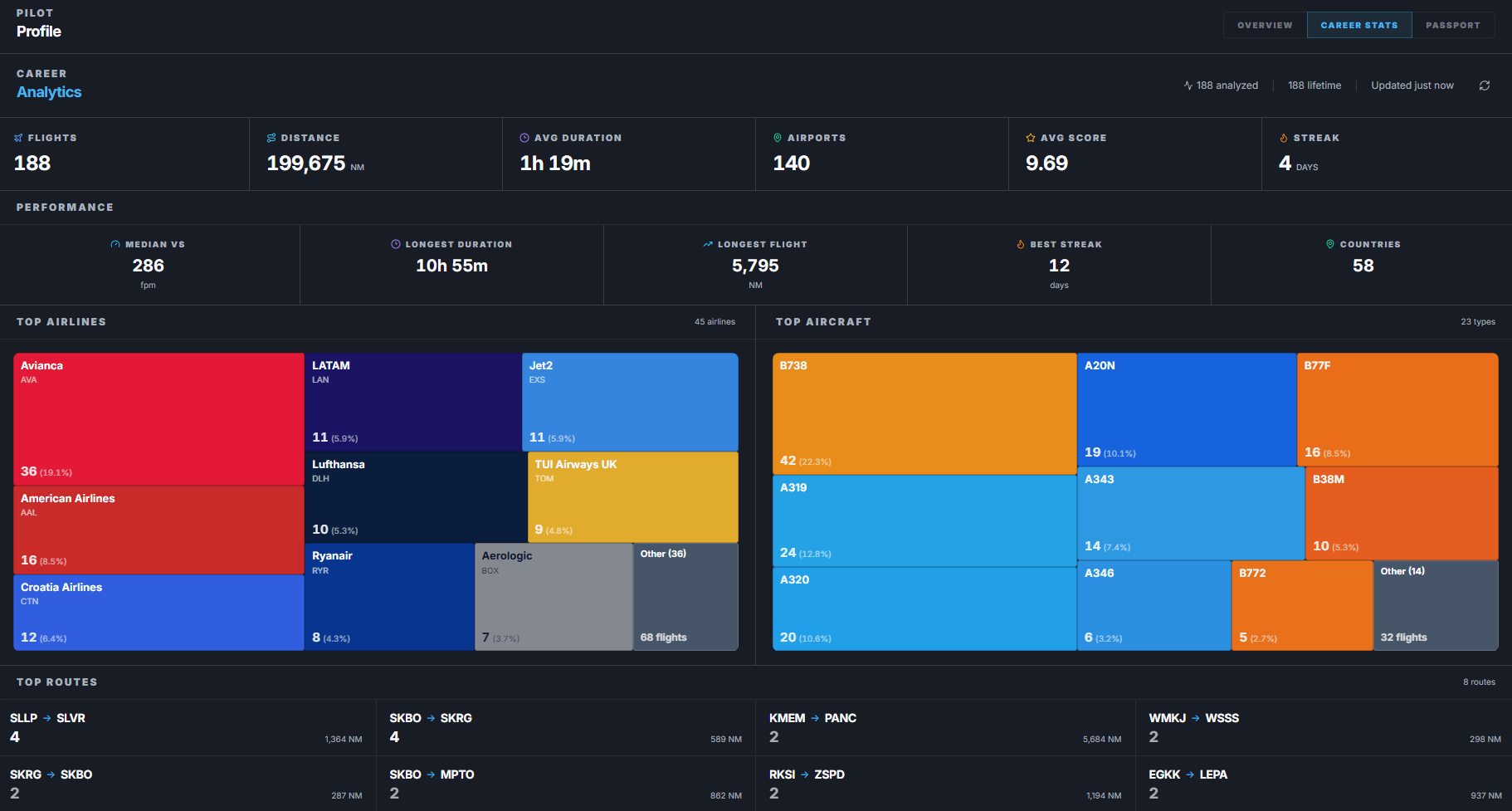
- Analyzed flights.
- Lifetime flights.
- Total distance.
- Average flight duration.
- Unique airports visited.
- Average score.
- Current flying streak.
- Best flying streak.
- Median landing vertical speed.
- Longest flight by distance.
- Longest flight by duration.
- Unique countries visited.
- Top airlines.
- Top aircraft types.
- Top routes.
- Monthly flight activity.
- Online versus offline flight breakdown.
- Current versus historical flight breakdown.
Passport tab
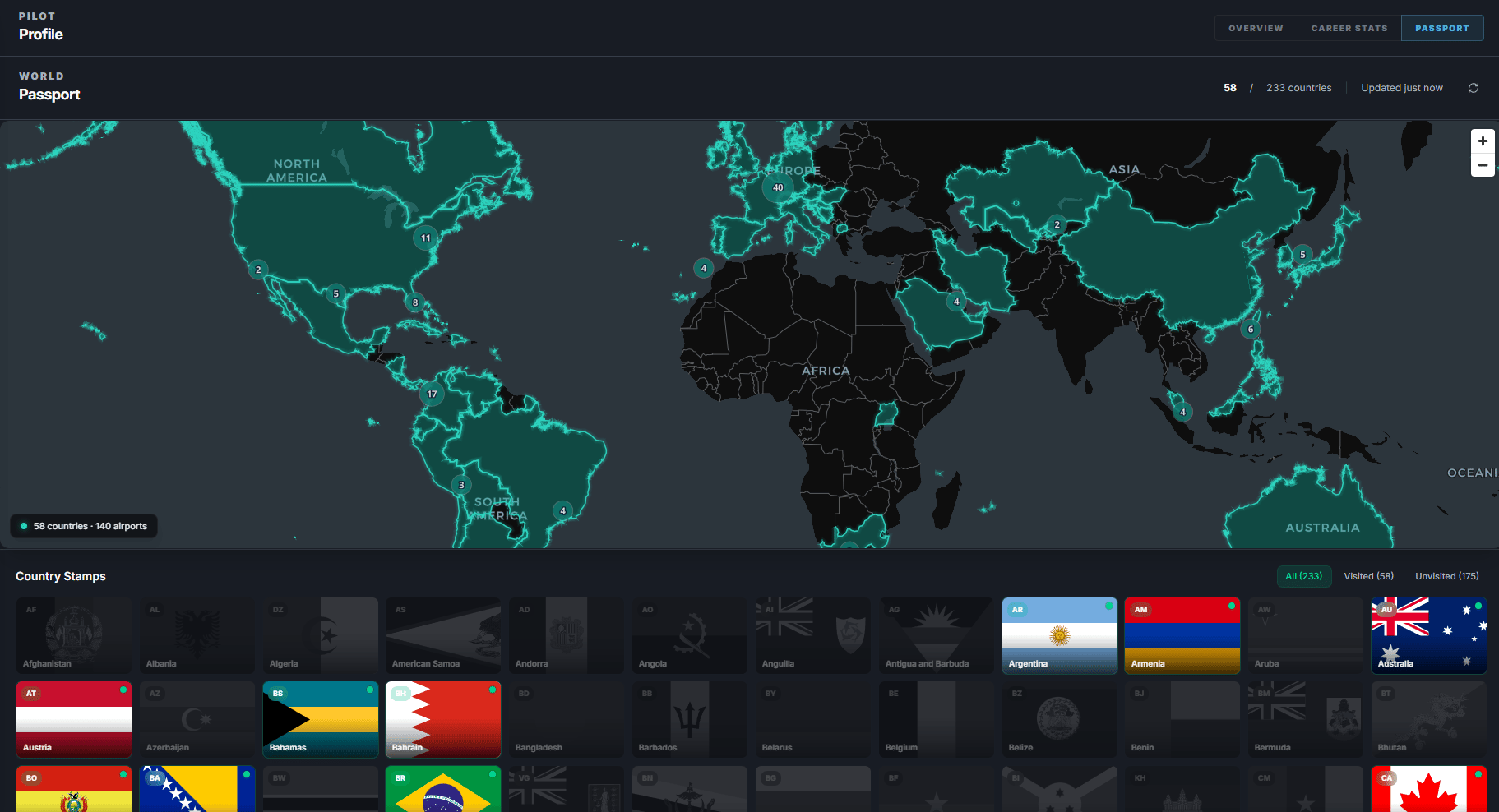
- Countries visited.
- Total reachable country count.
- A world map of visited countries and airports.
- Airport visit markers.
- Passport country stamps.
- Airport familiarity badges.
Type ratings
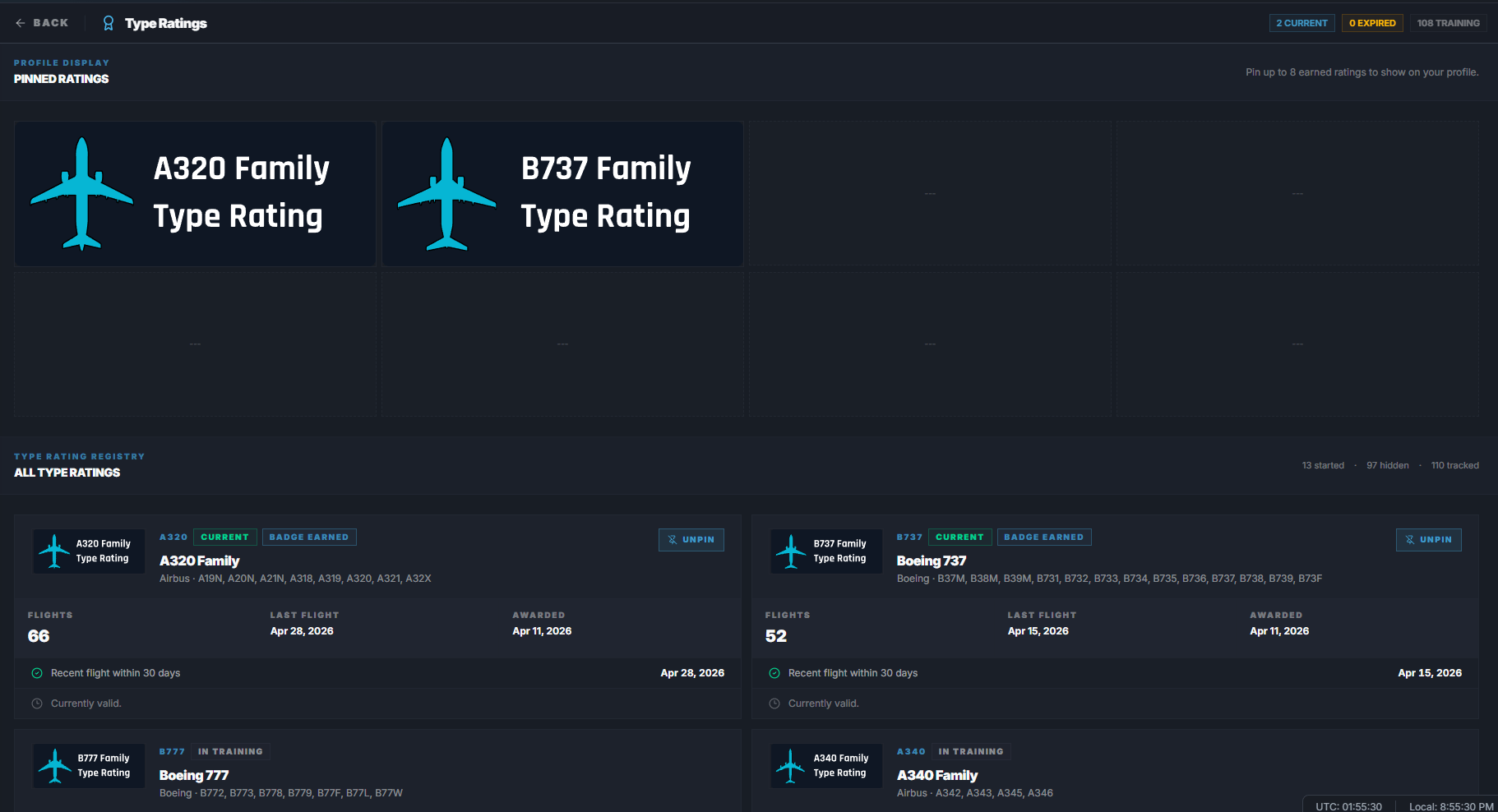
- Aircraft family or rating title.
- Aircraft codes included in that rating.
- Current, expired, or training status.
- Completed flights for that rating.
- Last flight date.
- Awarded date when earned.
- Requirements still needed.
- Badge image when available.
How type ratings are earned
In Free Flight, a type rating is earned by flying enough qualifying flights and meeting the rating requirements. Requirements can include:- Minimum completed flights in that rating.
- A recent flight within 30 days.
- Minimum score in the last 10 flights.
- Average score in the last 30 flights.
Pinning type rating badges
You can pin earned type ratings to your profile. To pin a type rating:- Open your Profile.
- Click Type Ratings.
- Find an earned type rating.
- Click Pin.
Achievements
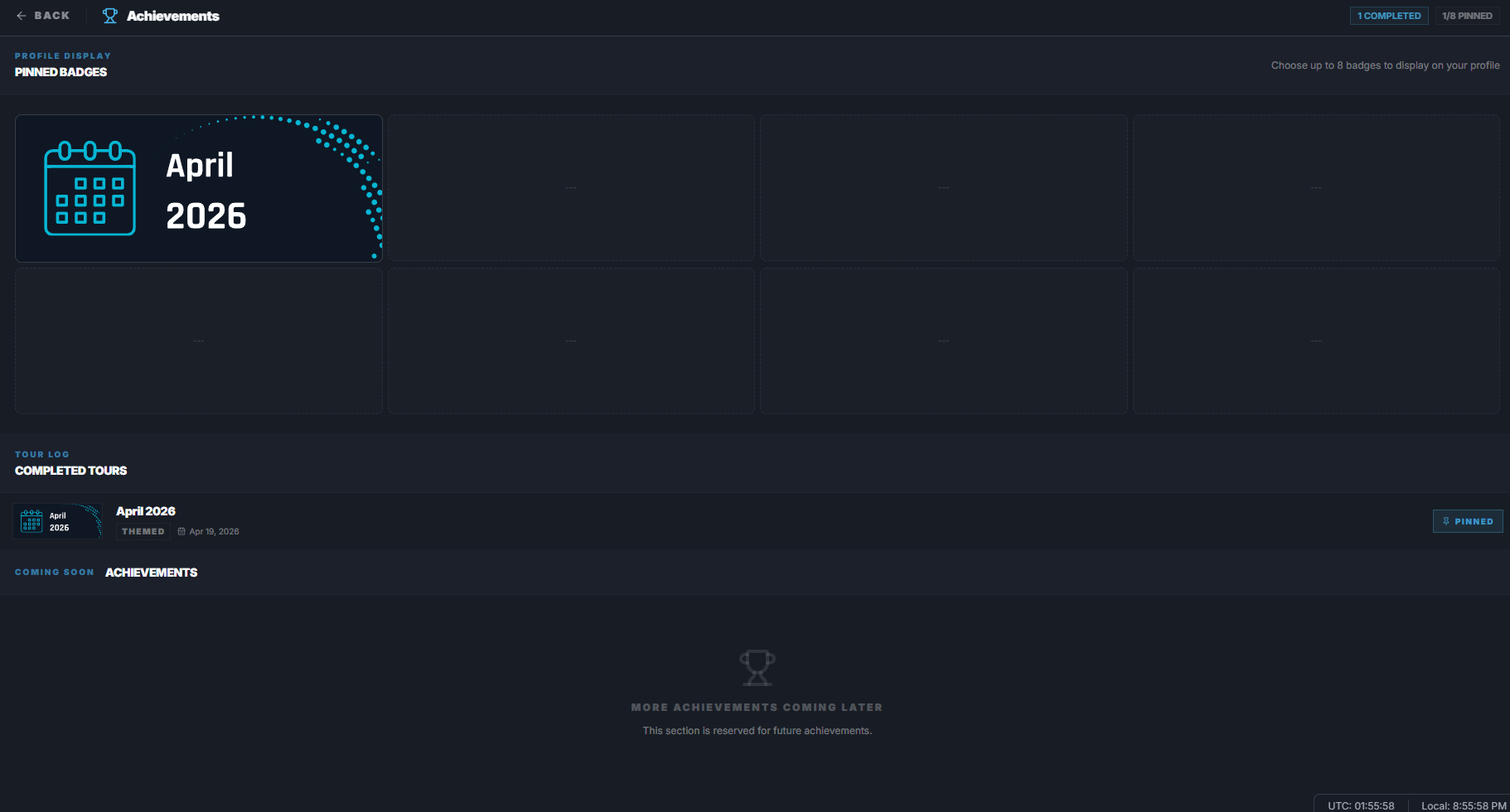
- Completed tour badges.
- Tour name.
- Tour category.
- Completion date.
- Pinned badges.
- Creator partner badge when linked to the account.
Pinning achievement badges
You can pin completed achievement badges to your profile. To pin an achievement:- Open your Profile.
- Click Achievements.
- Find a completed badge.
- Click Pin.
Logbook
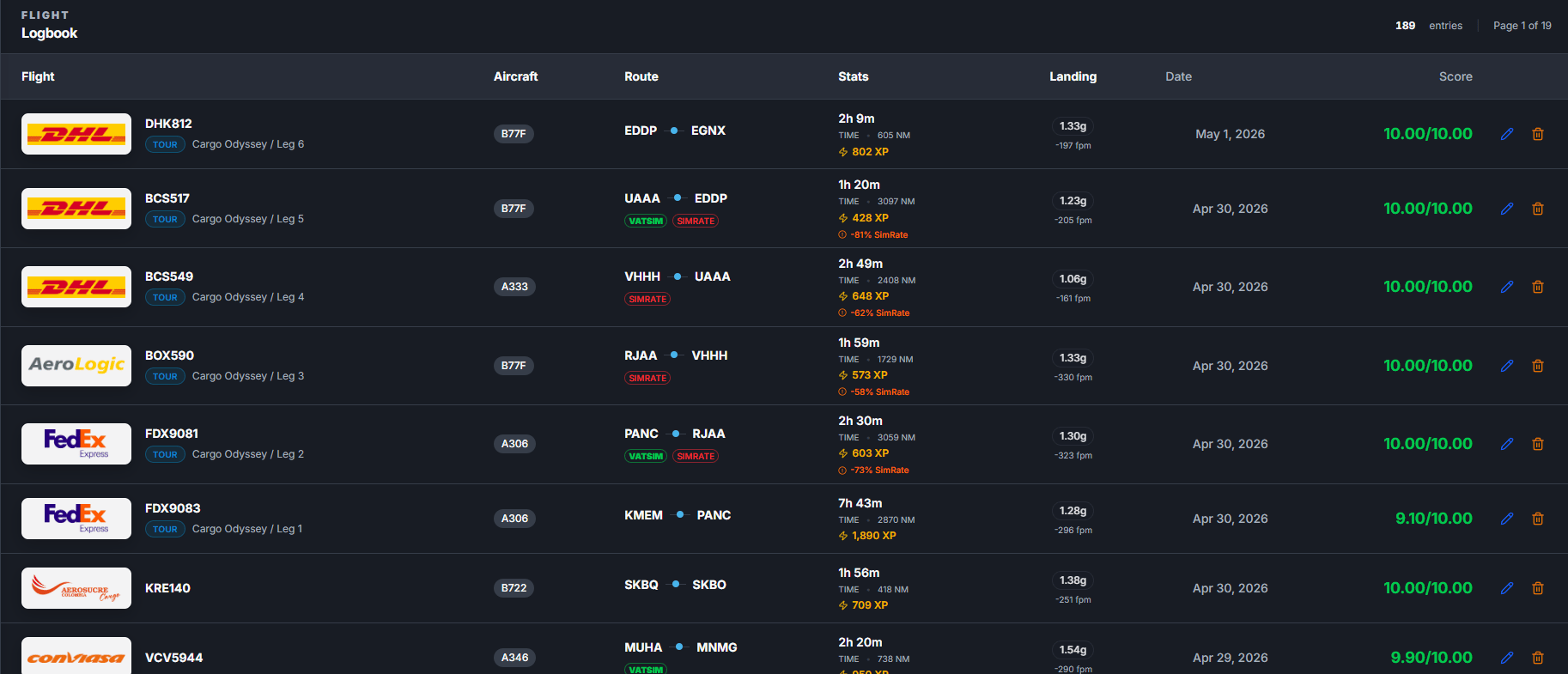
- Route.
- Airline.
- Flight number.
- Aircraft.
- Flight date.
- Flight time.
- Score.
- XP earned.
- Tracking or operation badges.
Opening a flight entry
To inspect one completed flight:- Open your Profile.
- Scroll to Logbook.
- Click the flight entry you want to review.
Flight detail page
The flight detail page is where you review what happened on one flight.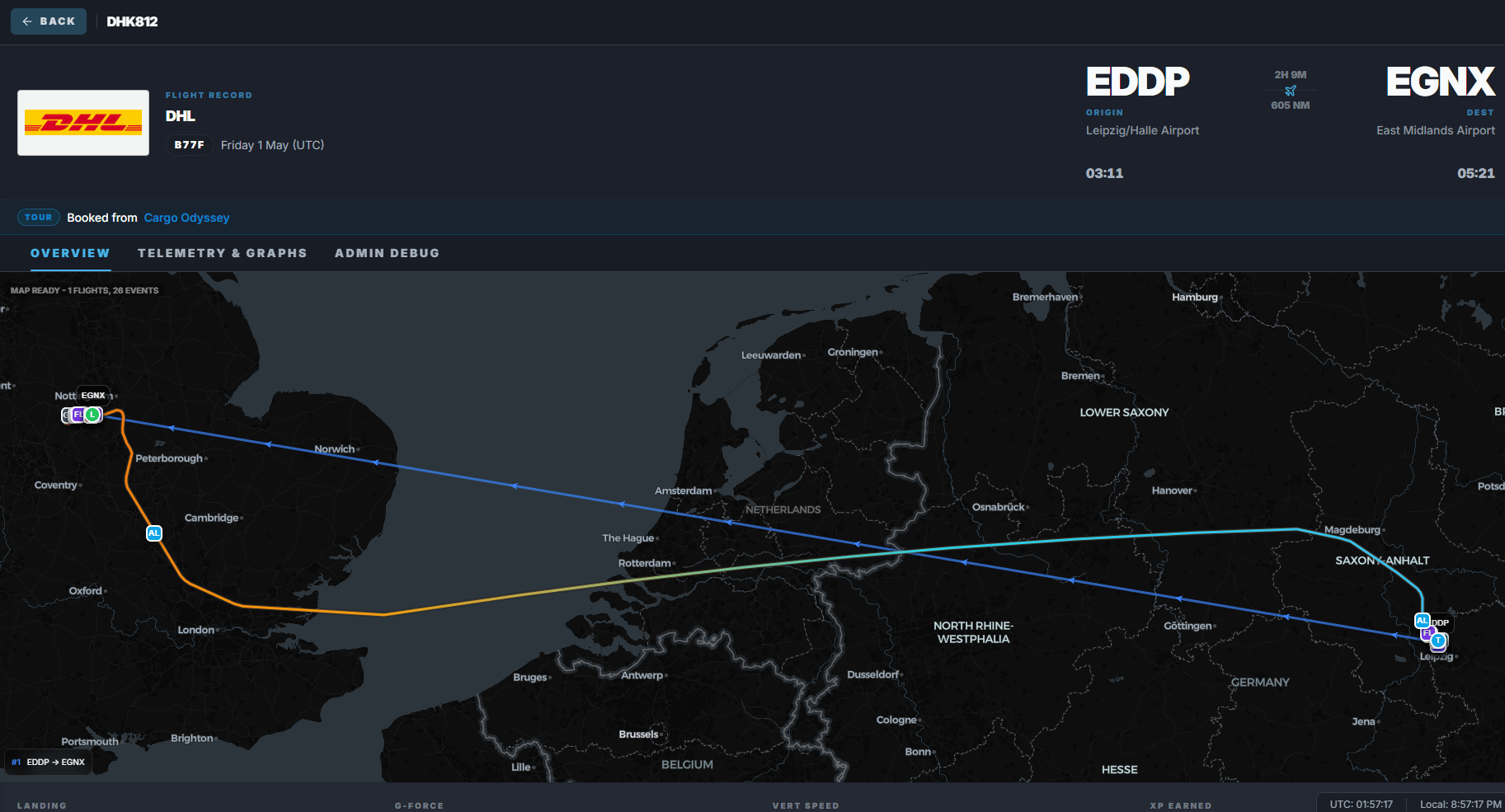
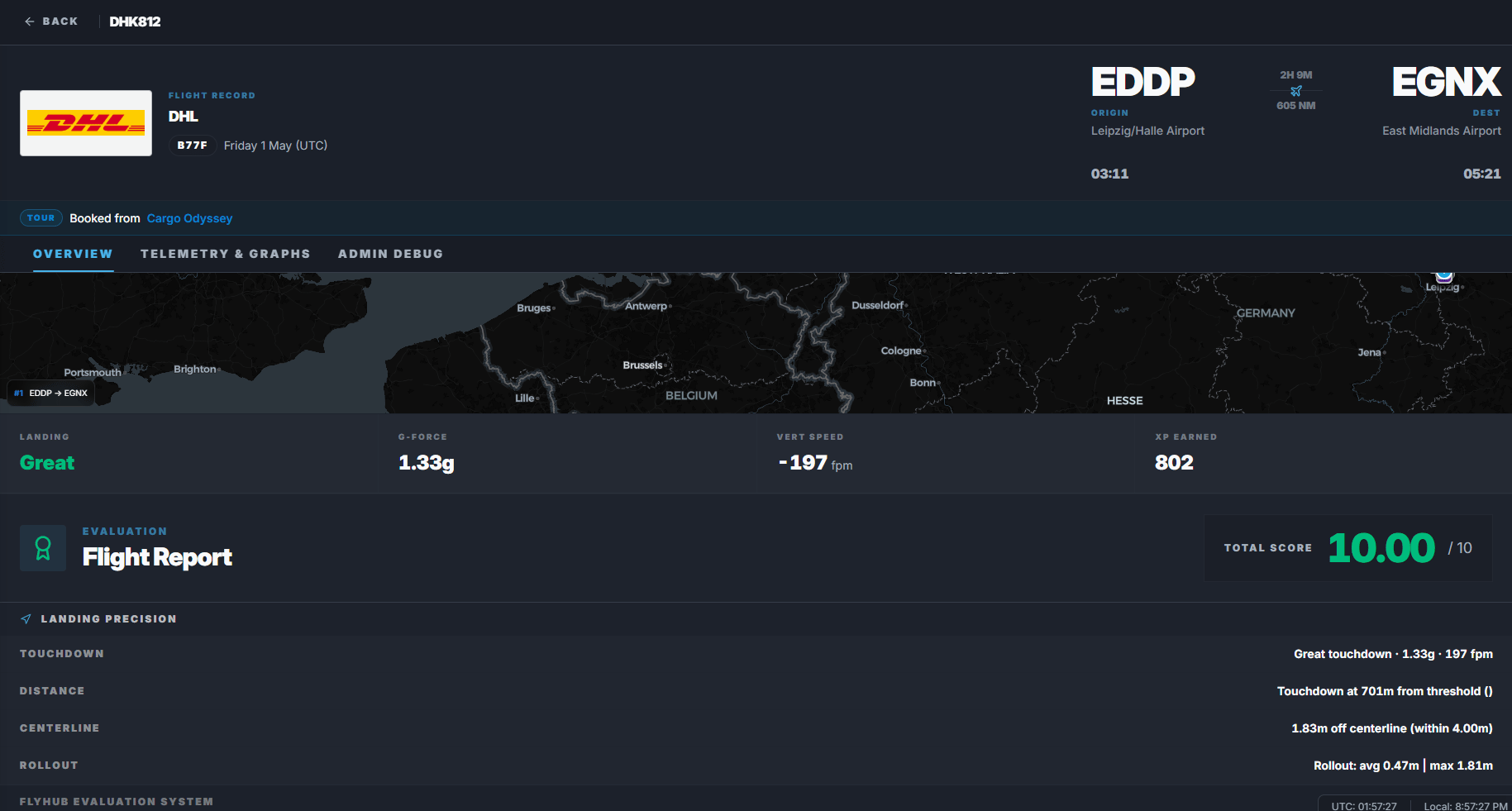
- Route map.
- Recorded flight path.
- Origin and destination.
- Alternate landing airport when applicable.
- Airline and flight number.
- Aircraft.
- Flight time.
- Distance.
- Landing result.
- Score.
- XP earned.
- Offline XP multiplier when the flight was offline.
- SimRate penalty when time compression affected XP.
- Network bonus when VATSIM or IVAO requirements were met.
- Crash or cheat detection warnings when applicable.
- Full score report.
Scoring report
The score report explains why the flight received its final score. Depending on the flight, it may include:- Landing score.
- Landing vertical speed.
- G-force or landing analysis.
- Runway alignment.
- Runway excursion or overrun checks.
- Bounce detection.
- Gear, lights, and flap events.
- Altimeter checks.
- Unstable approach events.
- Crash detection.
- Penalties and bonuses.
Telemetry and graphs
Flight entries can include a Telemetry & Graphs tab. For online flights, this can show:- Altitude graph.
- Speed or flight profile data when available.
- Landing analysis graph.
- Recorded telemetry context.
Deleting logbook entries
You can delete your own Free Flight logbook entries. Important rules:- You can delete up to 5 entries per month.
- Deleted entries are marked as deleted.
- Deleted entries no longer count normally in profile totals.
- Deletion cannot be undone by the user.