

Tours
Tours are curated sets of flights built around a theme, region, aircraft, airline, or special event. Use Tours when you want a structured route collection without using Career Mode.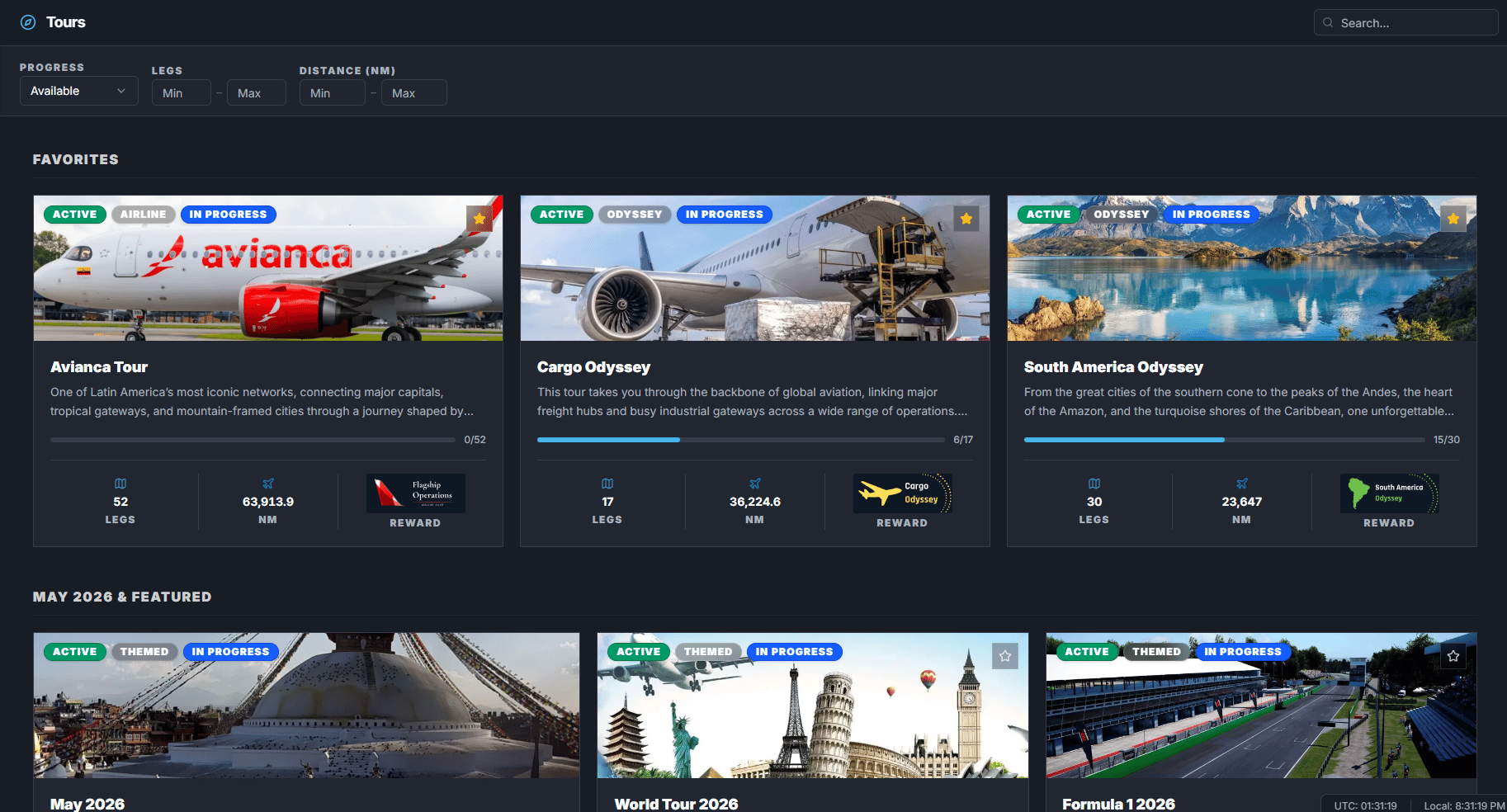
Browsing tours
Open Tours to browse active, upcoming, and ended tours. You can search and filter by:- Tour name.
- Progress.
- Minimum or maximum number of legs.
- Minimum or maximum distance.
Tour sections
Tours can appear in sections such as:- Favorites.
- Monthly and Featured.
- Upcoming.
- Ending Soon.
- Aircraft Operations.
- Airline Operations.
- Airport Tours.
- Historical Tours.
- Odyssey Tours.
- Regional Tours.
- Themed Tours.
- VIP Tours.
Tour cards
Tour cards can show:- Cover image.
- Tour status.
- Category.
- Name.
- Description.
- Number of legs.
- Total distance.
- Badge reward.
- Progress if you are enrolled.
- Countdown if the tour ends soon.
Tour detail page
Open a tour to see:- Tour hero and description.
- Route map.
- Leg list.
- Progress bar.
- Available schedules for a selected leg.
- Leaderboard or pilot table.
- Completed flights.
Enrolling
- Open an active tour.
- Click Enroll to Start.
- FlyHub starts tracking your progress for that tour.
Leg order
Tours can be sequence-based or any-order.
Completed legs are marked complete.
Booking a tour leg
- Open a tour.
- Enroll if you are not already enrolled.
- Select the leg you want to fly.
- Review available schedules for that leg.
- Click Book on the schedule you want.
- Choose aircraft if FlyHub asks.
- Confirm the booking.
- Open My Flights.
- Start and complete the flight.
Special tour types
Some tours use special booking behavior:- Historical tours create historical bookings.
- VIP tours create VIP tour bookings.
- Normal tours create normal Free Flight bookings tied to the tour leg.
Tracking progress
After you complete tour flights, FlyHub updates your tour progress. The detail page can show:- Completed legs.
- Remaining legs.
- Progress bar.
- Completed flight records.
- Pilot standings.
Common mistakes
- Trying to book a leg before enrolling.
- Trying to book an upcoming or ended tour.
- Trying to skip ahead in a sequence-locked tour.
- Forgetting that the booking still needs to be flown from My Flights.