

Dashboard
The Dashboard is the main hub for Free Flight Mode.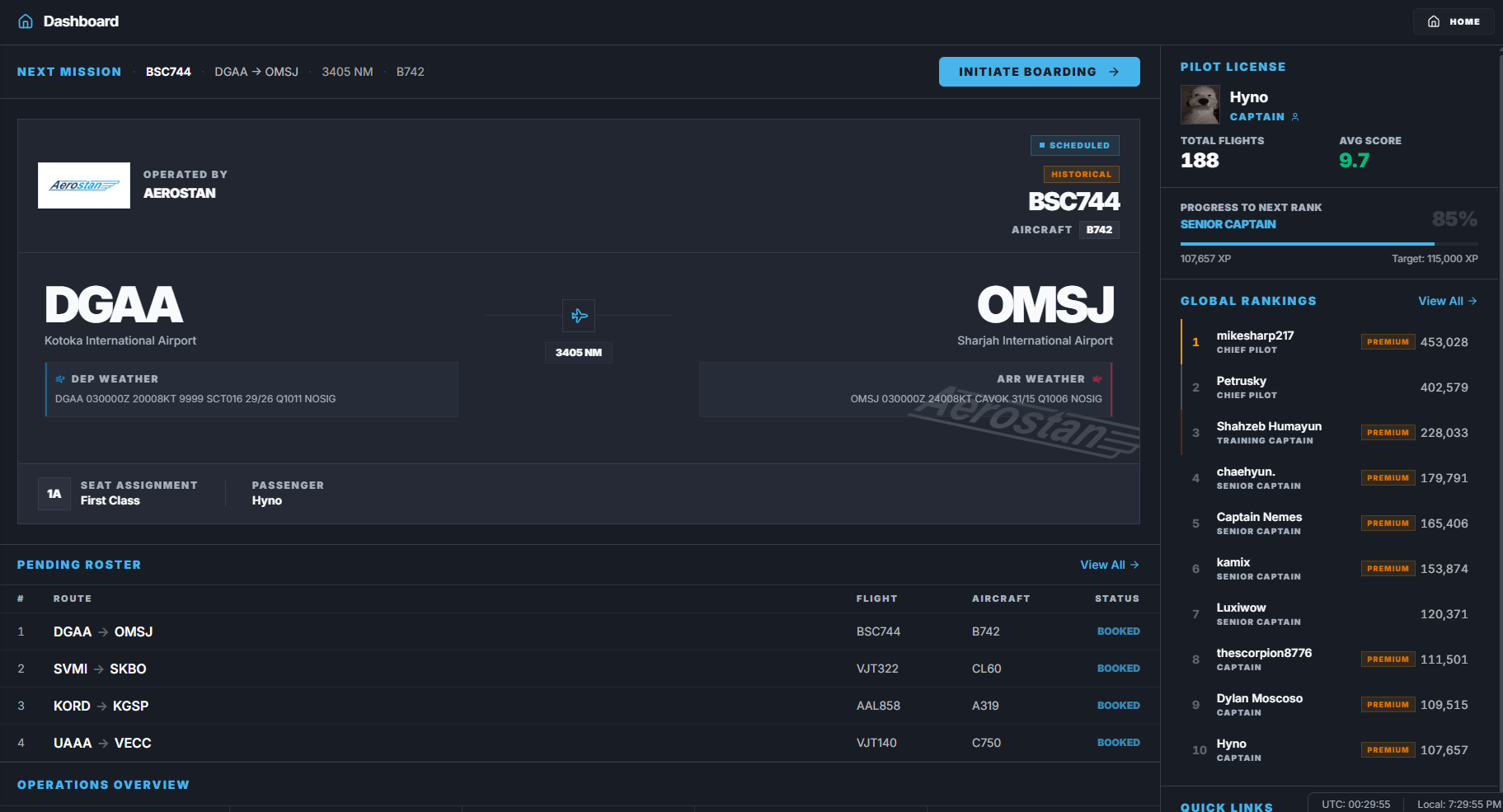
What the Dashboard shows
The Dashboard changes based on your current status. It can show:- Your next booked flight.
- Your active flight.
- A recovery option after a crash or outage.
- Your pending roster.
- Free-tier airline rotation.
- Monthly airline choice.
- Pilot rank and XP progress.
- Operations stats.
- Global ranking preview.
- Quick links to important pages.
Next Mission
The Next Mission strip shows the most important action right now.
FlyHub prioritizes active flights first. If you have an active flight and several upcoming flights, the active flight is shown as the next mission.
Boarding Pass
The Boarding Pass card shows the next active or upcoming flight. It can include:- Airline logo and name.
- Flight number.
- Active or scheduled status.
- Historical badge when the booking is historical.
- Aircraft type.
- Origin and destination ICAO.
- Airport names.
- Route distance.
- Departure and arrival METARs when available.
Pending Roster
The Pending Roster shows up to five upcoming or active Free Flight bookings. Each row shows:- Queue position.
- Route.
- Flight number.
- Aircraft.
- Status.
Free-tier airline access
Free users see an Operational Access section. This section shows:- Five weekly rotating airlines.
- Countdown to the next weekly rotation.
- One monthly personal airline choice.
- Locked state for airlines outside your free access.
Monthly airline choice
Cadet users can choose one extra airline for the current UTC month. If you have not chosen one yet:- Open Dashboard.
- Find the Monthly Personal Airline section.
- Select the airline you want.
- Click Lock Airline.
Premium prompt
Free users may see a premium card for Captain features. Captain unlocks:- All active airlines.
- Historical Routes.
- Manual Flights.
- VIP Ops.
- Career Mode.
- Unrestricted scheduler access.
- Priority support.
- Captain role and profile badge.
Operations Overview
The Dashboard includes operations stats such as:- Flight hours.
- Distance this month.
- Active bids.
- Total XP.
- Recent live activity.
Pilot License
The right-side pilot card shows:- Avatar.
- Display name.
- Rank.
- Total flights.
- Average score.
- XP progress toward the next rank.
Global Rankings
The Dashboard can show a preview of top pilots. Use it to compare Free Flight performance and jump to the full Leaderboard.Quick Links
Quick Links help you jump directly to common Free Flight pages:- Schedules.
- My Flights.
- Live Map.
- Leaderboard or rankings.
Leaving while a flight is active
If you try to leave Free Flight while an active flight exists, FlyHub may ask you what to do. You can:- Keep tracking and stay in the current flow.
- Reset and leave, which moves active Free Flight bookings back to My Flights when possible.
Common mistakes
- Looking for Career assignments on the Free Flight Dashboard.
- Ignoring the weekly airline rotation as a free user.
- Forgetting that the monthly airline is locked for the UTC month.
- Expecting Recover Flight when no recent online recovery snapshot exists.
- Leaving Free Flight while a flight is active without reading the confirmation.