

Integrations
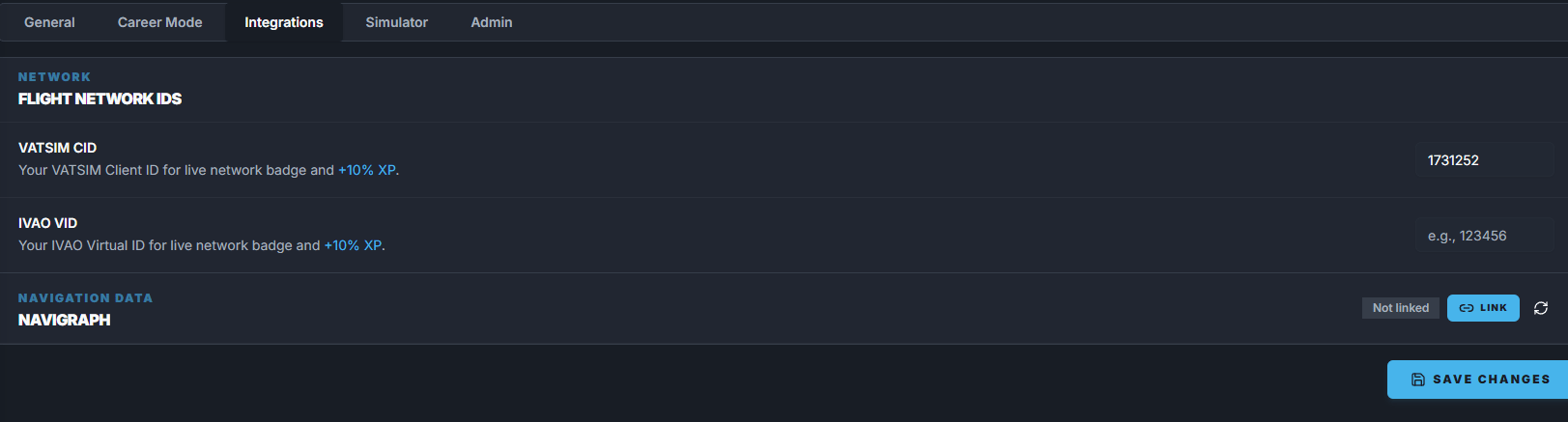
VATSIM integration
Use VATSIM CID to enter your VATSIM Client ID. When FlyHub detects that you flew online on VATSIM with the matching CID, your flight can receive a live network badge and a +10% XP bonus.Add your VATSIM CID
- Open Settings.
- Select Integrations.
- Find VATSIM CID.
- Type your VATSIM Client ID.
- Click Save Changes.
IVAO integration
Use IVAO VID to enter your IVAO Virtual ID. When FlyHub detects that you flew online on IVAO with the matching VID, your flight can receive a live network badge and a +10% XP bonus.Add your IVAO VID
- Open Settings.
- Select Integrations.
- Find IVAO VID.
- Type your IVAO Virtual ID.
- Click Save Changes.
Network bonus rules
The network bonus is meant for real online network flights. FlyHub needs to match your saved VATSIM CID or IVAO VID with the online network presence for the flight. If the ID is missing or wrong, FlyHub may not award the network badge or bonus.Navigraph integration
The Integrations tab also has a Navigraph section. Current Navigraph linking can show account status and available access such as FMS Data and Charts. More Navigraph features are planned for the future.Link Navigraph
- Open Settings.
- Select Integrations.
- Find Navigraph.
- Click Link.
- Click Open Navigraph.
- Sign in on the Navigraph page.
- Authorize FlyHub.
- Return to FlyHub and wait for the status to update.
Sign-in tip
If a Google, Apple, Microsoft, or other OAuth login does not work inside FlyHub Desktop, use your Navigraph email and password instead. This is a Navigraph login-window issue, not a FlyHub account issue. Email and password login should still work.Unlink Navigraph
- Open Settings.
- Select Integrations.
- Find Navigraph.
- Click Unlink.