

My Flights
My Flights is your Free Flight dispatch queue. Every route you book from Schedules, Scheduler, Historical Routes, Tours, VIP Ops, or Manual Flights appears here before you fly it.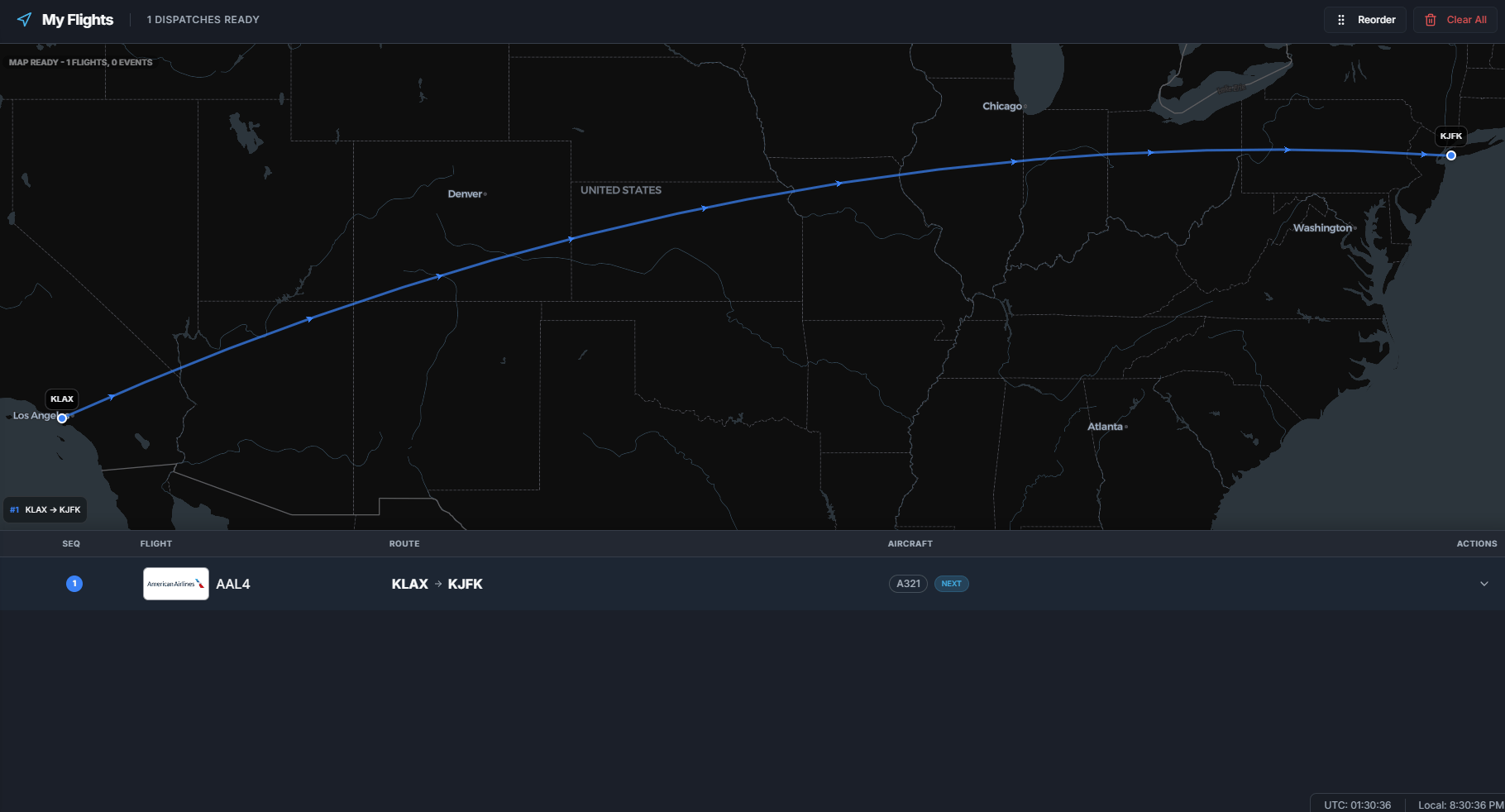
What My Flights is for
Use My Flights to:- Review upcoming bookings.
- Start the next flight.
- Resume an active flight.
- Recover an interrupted flight.
- Cancel a dispatch.
- Reorder your Free Flight queue if you have premium access.
- Clear your Free Flight queue when allowed.
Page layout
My Flights has three main areas:
The table can show route, flight number, airline, aircraft, status, and actions.
Queue order
FlyHub treats My Flights as an ordered queue. Only the first actionable booking can be started. The primary booking is:- The active flight, if one exists.
- Otherwise the first upcoming flight.
Empty state
If there are no bookings, My Flights shows an empty schedule message. Use Find Flights to open Schedules and book a route.Starting a flight
- Open My Flights.
- Find the first upcoming booking.
- Expand the row if needed.
- Click Start Flight.
- Choose Online or Offline if FlyHub asks.
- Optionally save the choice as your default tracking mode.
- FlyHub activates the booking and opens Active Flight.
Online vs offline start
See Tracking Methods for the full comparison.
Resuming a flight
If a booking is already active, My Flights shows Resume Flight. Click Resume Flight to return to Active Flight. Use this if you minimized FlyHub, navigated away, or returned to the app during a flight.Recovery actions
If an active online flight has a recent recovery snapshot, My Flights can show:- Recover Flight.
- Restart from Beginning.
Reordering flights
Premium users can reorder the Free Flight queue.- Click Reorder.
- Drag bookings into the order you want.
- Click Save.
Clear All
Clear All removes your visible Free Flight queue. It is not available while active tracking is recording. Use it only when you are sure you want to remove the queued flights.Cancel Dispatch
Use Cancel Dispatch to remove one booking.- Expand the booking.
- Click Cancel Dispatch.
- Confirm the cancellation.
Booking badges
My Flights can show badges such as:- Active.
- Next.
- Historical.
- Tour.
- VIP.
- Chain.
- Tail or private aircraft status.
Common mistakes
- Trying to start a later flight before finishing the current one.
- Cancelling a VIP chain without realizing the whole chain may be affected.
- Clearing the queue when you meant to cancel only one dispatch.
- Starting offline when you wanted online telemetry.
- Forgetting to recover before the recovery window expires.