

General Settings
The General tab controls your public profile, SimBrief defaults, and basic desktop app behavior.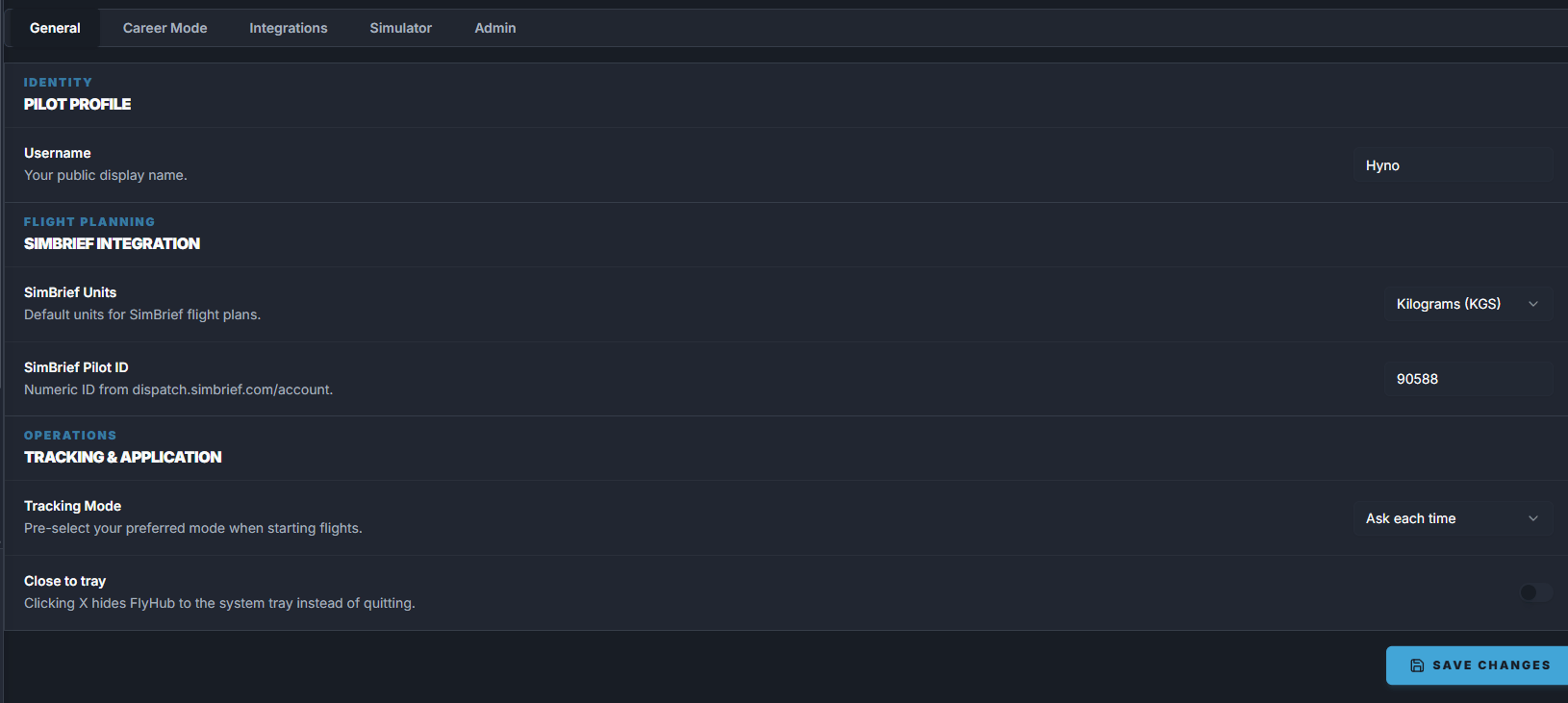
Change your profile picture
Your profile picture appears across FlyHub.- Open Settings.
- Go to General.
- Click your avatar or the small camera button.
- Choose an image from your computer.
- Wait for the upload to finish.
Change your username
Your username is your public display name.- Open Settings.
- Go to General.
- Find Username.
- Type the name you want to use.
- Click Save Changes.
Manage your plan

SimBrief units
SimBrief Units chooses the default weight units FlyHub sends to SimBrief when generating flight plans.
Choose the unit system you normally use in your simulator or aircraft.
SimBrief Pilot ID
The SimBrief Pilot ID is your numeric SimBrief user ID. You can type it manually in Settings, but FlyHub can also fill it in automatically. When you generate an OFP from My Flights and successfully log in to SimBrief through FlyHub’s integration, FlyHub reads the Pilot ID from the new OFP and saves it to your profile. If the field is empty, you can still generate an OFP. Make sure you log in during the SimBrief flow so the plan is attached to your SimBrief account. See Generate a SimBrief OFP for the full step-by-step guide.Tracking mode
Tracking Mode controls what FlyHub selects when you start a flight.
Online mode gives full telemetry tracking. Offline mode is for manual completion and earns reduced XP.
Close to tray
Close to tray changes what happens when you click the X button on the FlyHub Desktop window. When close to tray is enabled:- Clicking X hides FlyHub to the Windows system tray.
- FlyHub keeps running in the background.
- Telemetry and background app behavior can continue.
- You can reopen FlyHub from the tray icon near the clock.