

VIP Ops
VIP Ops is a premium Free Flight feature for private charter operations. Use it when you want client missions, charter reputation, returning clients, VIP chains, and private aircraft operations.Access
VIP Ops requires Captain. Free users see a premium locked state. Premium users see two main tabs:- Charter Board.
- Manual VIP Flight.
Charter Board
The Charter Board is the main VIP Ops mission board. It shows available VIP charters and lets you accept missions into My Flights.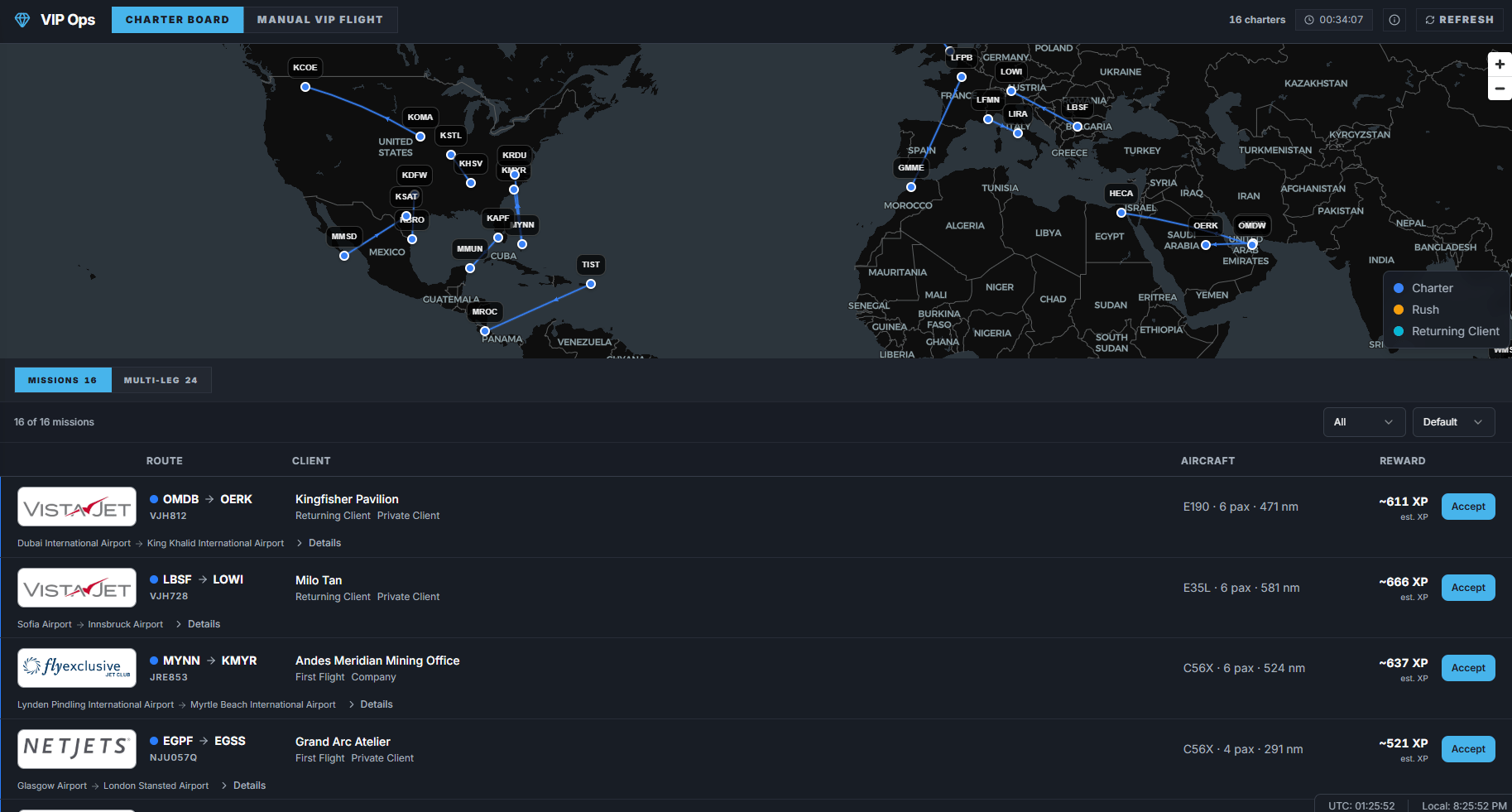
Board layout
The Charter Board includes:- Route map.
- Mission list.
- Multi-Leg tab when chains are available.
- Returning tab when returning-client requests are available.
- Visible charter count.
- Refresh countdown.
- Board mix information for short, medium, long, ultra, request, and rush missions.
Mission filters
The Missions tab can be filtered by:- All.
- Rush.
- Requests.
- Short.
- Medium.
- Long.
- Ultra.
Mission sorting
You can sort missions by:- Default.
- Distance ascending.
- Distance descending.
- XP.
Mission rows
A mission row can show:- Operator.
- Route.
- Flight number.
- Rush or returning-client badges.
- Client or purpose.
- Relationship hint.
- Aircraft type.
- Passenger count.
- Distance.
- Estimated XP.
- Accept or Take action.
- Expandable details.
Accepting a VIP mission
- Open VIP Ops.
- Choose Charter Board.
- Review the map and mission list.
- Click Accept or Take on a mission.
- Review the Accept VIP Charter dialog.
- Choose an aircraft from the FlyHub aircraft catalog.
- Click Accept Charter.
- FlyHub adds the mission to My Flights.
- Start the flight from My Flights.
Board lock rules
VIP board missions use a live-booking lock. If you already have an active board mission or chain, the board can show a lock state and block another board mission. Manual VIP Flights are separate from the board lock.Multi-Leg chains
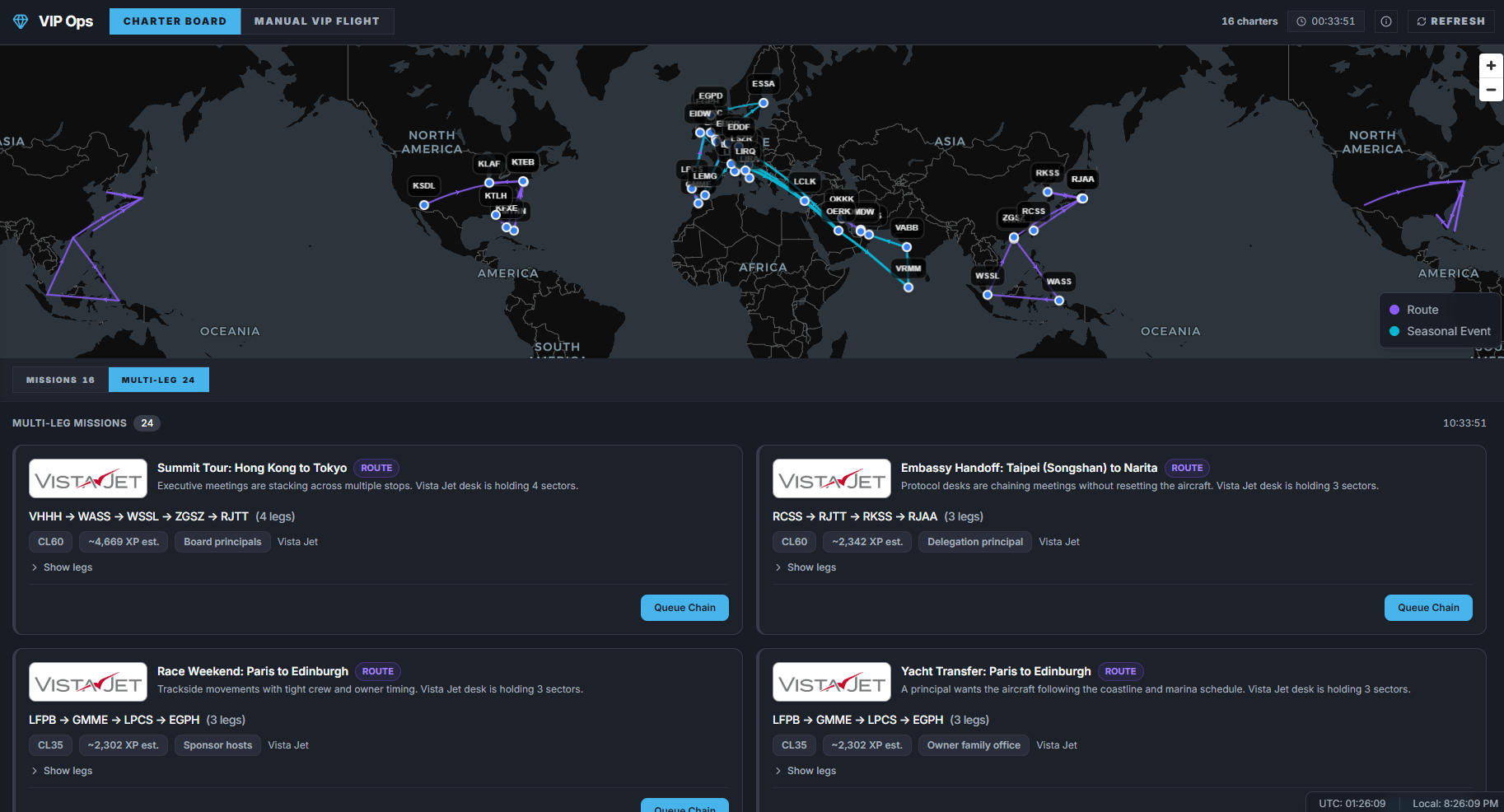
Accepting a chain
- Open VIP Ops.
- Choose Charter Board.
- Open Multi-Leg.
- Review the chain route and legs.
- Select the chain.
- Click the chain accept action.
- Review the Queue Full Chain dialog.
- Choose one aircraft type for the full chain.
- Confirm the chain.
- FlyHub adds all chain legs to My Flights in order.
Chain rules
- Chains contain multiple legs.
- Chain legs are queued together.
- You cannot queue another chain while a chain is live.
- You cannot queue a chain while a charter-board VIP mission is live.
- If chain creation fails partway through, FlyHub rolls back created legs.
- Some chain cancellations affect the whole chain.
Returning clients
Successful VIP flights can create returning-client requests. Returning requests may appear in:- Requests filter.
- Returning tab.
- Board request or rush counts.
- Return segments.
- Continuations.
- Referral flights.
Completing VIP flights
VIP flights are flown from My Flights like other Free Flight bookings.- Accept or create a VIP booking.
- Open My Flights.
- Start the flight.
- Fly online or offline.
- Finish the flight.
- FlyHub saves the result.
- VIP progression updates if applicable.
- VIP reputation.
- Client familiarity.
- Account warmth.
- Operator trust.
- Cooldowns.
- Follow-up requests.
Manual VIP Flight
Manual VIP Flight lets premium users create VIP operations outside the live charter board. It has two modes:- Manual Bid.
- Weather Scout.
- Flight Builder.
Manual VIP Bid
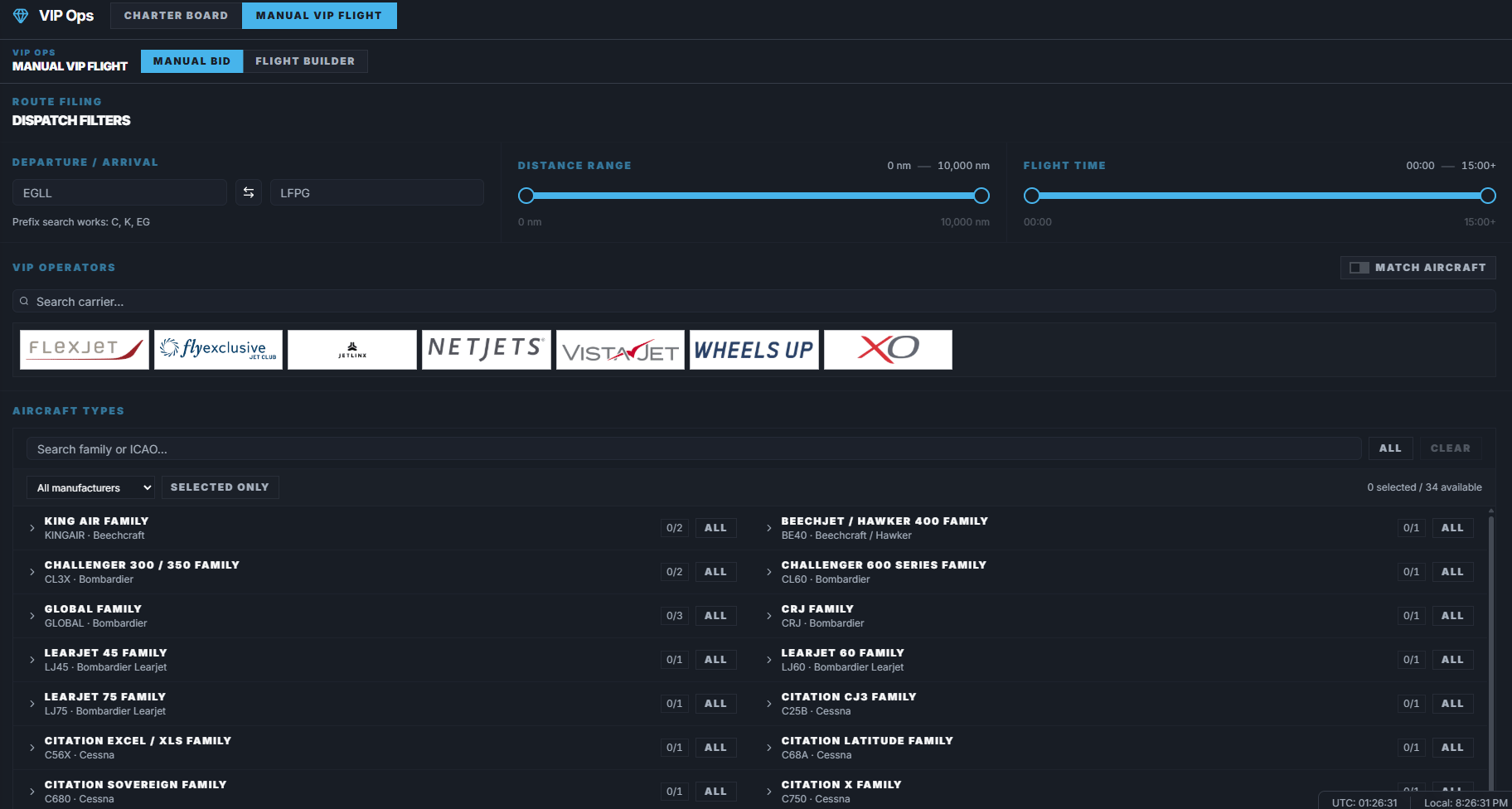
Manual Bid searches VIP-bookable schedules.
- Open VIP Ops.
- Choose Manual VIP Flight.
- Choose Manual Bid.
- Set route, distance, operator, aircraft, or flight time filters.
- Click Search.
- Review schedule rows.
- Click Book.
- Choose a suggested aircraft or another aircraft from the catalog.
- Confirm the bid.
- Open My Flights.
VIP Weather Scout
Weather Scout searches VIP manual-bid schedules by current METAR weather. Use it when you want a VIP route with a specific weather style, such as a clean VFR departure, a challenging arrival, gusts, low visibility, fog, snow, rain, thunderstorm, or a route touching scanned scenery.- Open VIP Ops.
- Choose Manual VIP Flight.
- Choose Weather Scout.
- Select a Weather Profile, Weather Target, and any hard condition filters.
- Set VIP operators, aircraft, airports, distance, block time, or scenery preference if needed.
- Click Search VIP Weather Routes.
- Review the ranked route cards.
- Check the origin and arrival METAR summaries.
- Load TAFs if you want forecast context.
- Choose an aircraft and click Book.
- Open My Flights.
VIP Flight Builder
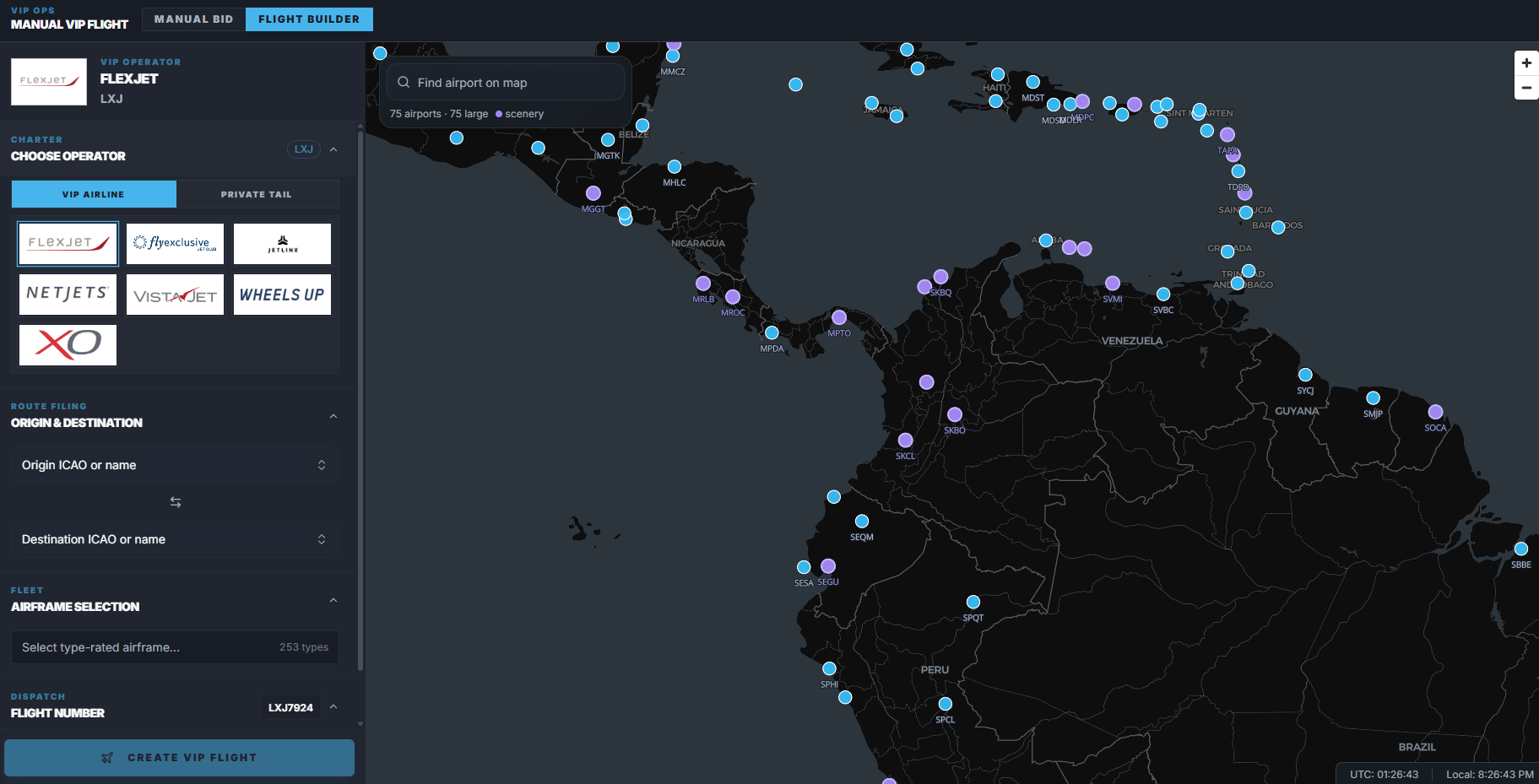
- Open VIP Ops.
- Choose Manual VIP Flight.
- Choose Flight Builder.
- Select VIP Airline or Private Tail mode.
- Choose origin and destination.
- Choose aircraft.
- Review preview warnings.
- Complete mode-specific fields.
- Create the VIP flight.
- Open My Flights.
VIP Airline mode
VIP Airline mode lets you build a VIP flight under a VIP operator. Choose:- VIP operator.
- Route.
- Aircraft.
- Flight number.
Private Tail mode
Private Tail mode lets you build a VIP flight using a registration. Choose:- Tail number.
- Route.
- Aircraft.
- Optional aircraft image.
- Optional saved aircraft profile.
Tail catalog
The tail catalog supports private aircraft records. You can:- Browse saved tails.
- Browse public catalog tails.
- Search by tail, operator, or aircraft.
- Create a tail.
- Upload an aircraft image.
- Choose private or public visibility.
- Mark a tail as fictitious.
- Save, load, edit, or delete your saved aircraft.
- Tail number is required.
- Aircraft type is required.
- Aircraft type must exist in the FlyHub catalog.
- Fictitious tails stay private.
- Duplicate tail numbers can be blocked.
- Public tails are shared catalog entries.
VIP Ops vs Manual Flights
Common mistakes
- Trying to accept another board mission while one is already live.
- Starting a chain without understanding that all legs are queued together.
- Cancelling a VIP chain when you only meant to stop one leg.
- Forgetting that VIP flights still start from My Flights.
- Using Manual VIP Flight when you wanted a normal Manual Flight.