

Schedules
Schedules is the main Free Flight page for current official airline routes. Use it to search routes manually, generate an itinerary, and submit missing recent schedule routes for review. This page is for Free Flight Mode. Career Mode has its own dispatch flow.Modes
Schedules has two modes:
You can switch between Manual Bid, Weather Scout, and Scheduler from the top of the page.
For the full weather-based search guide, see Weather Scout.
Free and premium access
Free users can book routes from:- The five weekly rotating airlines.
- Their one monthly airline choice.
Manual Bid overview
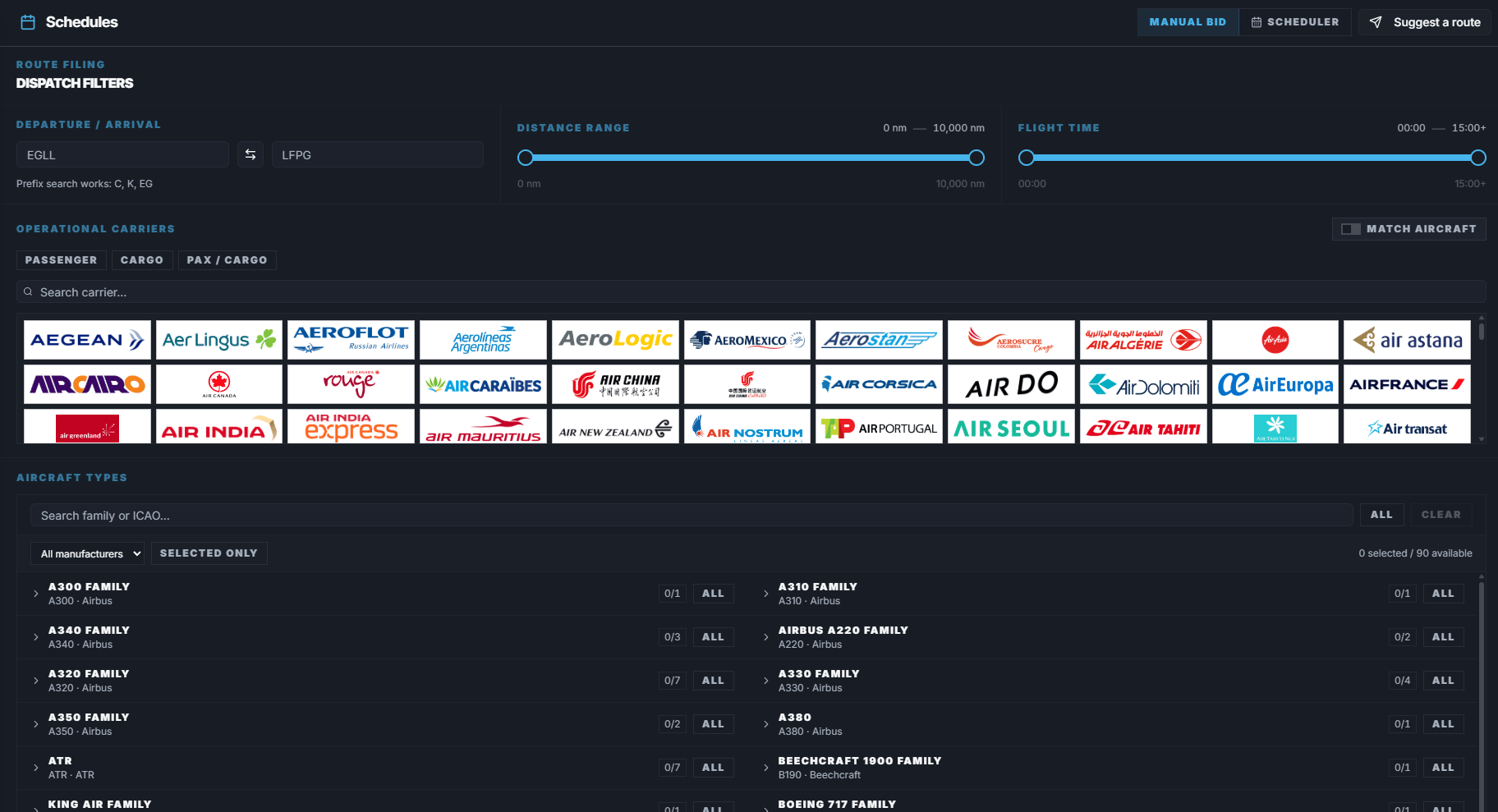
Manual Bid filters
Airline
Use Airline to select one or more carriers. Free users can only select airlines available through the weekly rotation or monthly choice. Locked airlines may appear unavailable or show a premium prompt. Premium users can select any active official airline.Airline type
You can narrow the airline list by operation type:- Passenger.
- Cargo.
- Passenger/cargo.
Aircraft
Use Aircraft to select the aircraft types you want to fly. The aircraft list is based on the selected airlines and available schedule fleet data. If you select no aircraft, FlyHub searches all aircraft types that match your other filters.Match aircraft
Match aircraft filters the airline list based on your selected aircraft. Use it when you want the airline list to show only carriers that operate the aircraft types you selected. Example: if you select A320 and enable Match aircraft, FlyHub hides airlines that do not have A320 routes in the available schedule data.Departure and arrival
Use Departure and Arrival to search by airport. You can enter:- A full ICAO code, such as
KJFK. - A partial prefix, such as
KJ, to browse airports that start with that prefix.
Distance range
Distance Range filters routes by nautical miles. Use it to find:- Short hops.
- Medium-haul routes.
- Long-haul routes.
Flight time
Flight Time filters by estimated duration. Use it when you know how much time you have to fly. When aircraft filters are selected, FlyHub also checks aircraft-specific flight time estimates when available.Manual Bid step-by-step
- Open Schedules.
- Choose Manual Bid.
- Select airlines, aircraft, departure, arrival, distance, or flight time filters.
- Click Search Routes.
- Review the route results.
- Click Book on the route you want.
- If the route has multiple aircraft types, choose the aircraft you will fly.
- Confirm the booking.
- Open My Flights when you are ready to start.
Route results
Route results can show:- Airline.
- Flight number.
- Origin.
- Destination.
- Distance.
- Estimated flight time.
- Aircraft options.
- Book action.
Scheduler overview
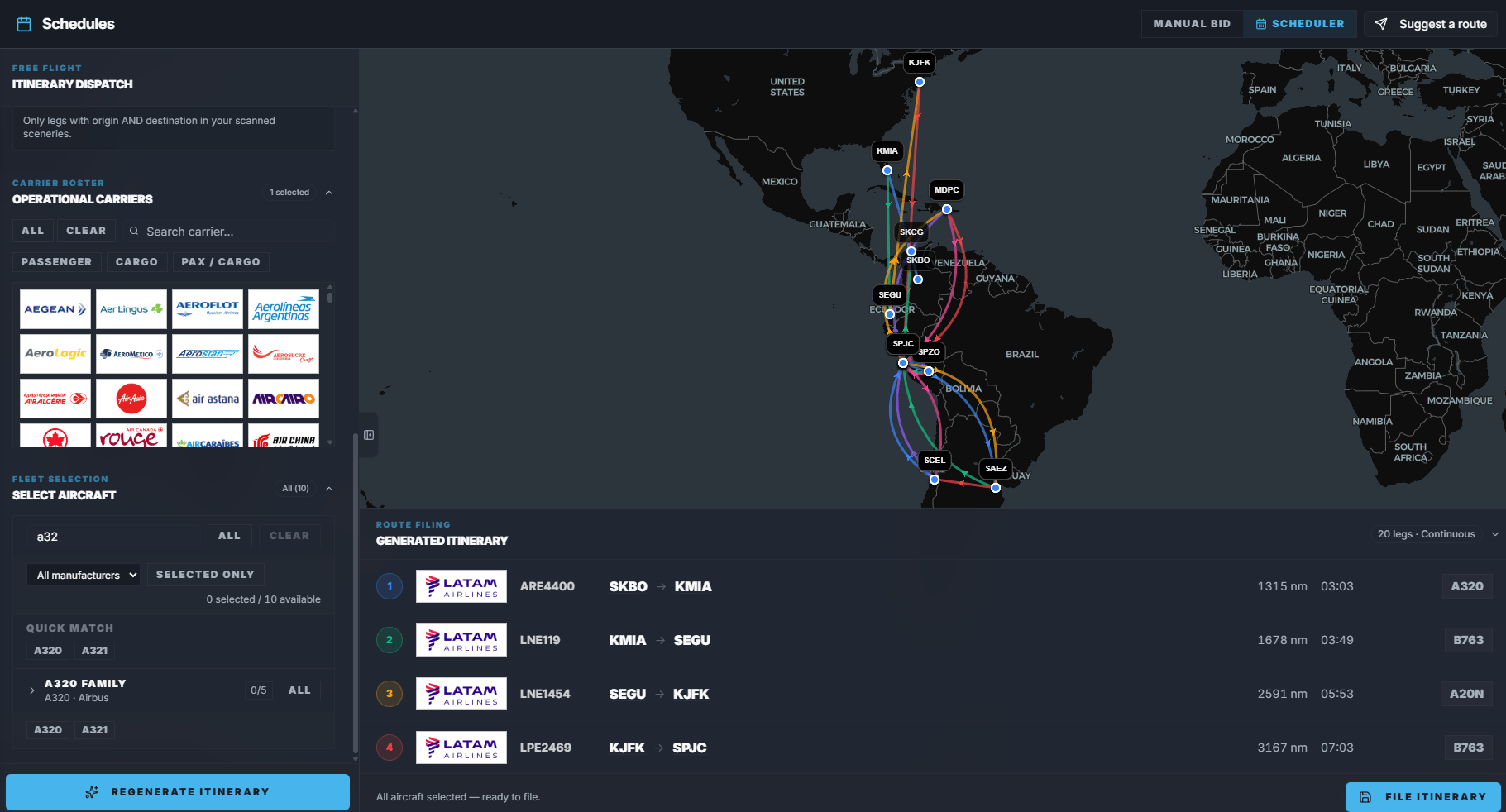
Scheduler settings
Number of legs
Choose how many flights you want in the itinerary. Each generated leg becomes a booking when you save the itinerary.Routing type
Start and end airports
For Continuous routing, you can enter a starting airport and an ending airport. Use these when you want the itinerary to begin or finish at a specific place.Round-trip hub
For Roundtrip routing, enter the hub airport. Roundtrip itineraries require an even number of legs because each outbound leg needs a return leg.Avoid round-trip duplicates
This option avoids duplicate reverse pairs when generating non-roundtrip itineraries. Example: if FlyHub already usedKJFK -> KBOS, it tries not to also use KBOS -> KJFK in the same itinerary.
Airline and aircraft
Select airlines and aircraft before generating. Scheduler needs at least one eligible airline. Aircraft filters narrow the generated routes to matching types.Distance and flight time
Distance and Flight Time work like Manual Bid filters, but they apply to every generated leg.Airport Rules
- Include required airports.
- Exclude airports.
- Save presets.
- Load presets later.
- Use scenery preference rules.
Scenery preference
If you use the Scenery Scanner, Scheduler can use your scanned and manually added scenery airports. Options include:- Off: no scenery filtering.
- Prefer: FlyHub prefers airports you have scenery for.
- Only: FlyHub only uses airports found in your scenery list when possible.
Scheduler step-by-step
- Open Schedules.
- Choose Scheduler.
- Select number of legs.
- Choose Random, Continuous, or Roundtrip.
- Set start, end, or hub airport if needed.
- Choose airlines.
- Choose aircraft types if you want to restrict the fleet.
- Set distance and flight time ranges.
- Add airport rules if needed.
- Choose scenery preferences if needed.
- Click Generate Itinerary.
- Review the generated legs on the map and list.
- Select aircraft for any leg that still needs an aircraft choice.
- Click Save to My Flights.
Saving an itinerary
When you save an itinerary, FlyHub adds all generated legs to My Flights. Each leg becomes an upcoming booking. You can then schedule them on the Calendar or start them from My Flights in order.Suggest a route
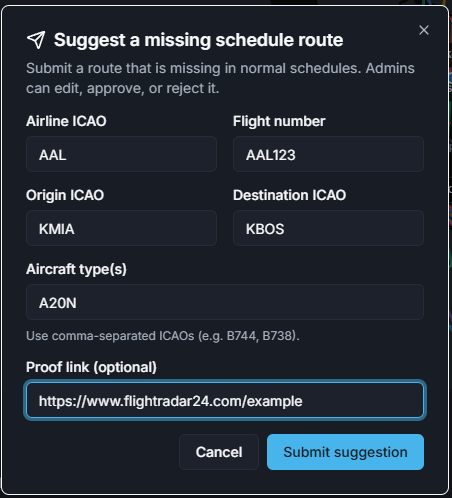
- The route has operated within the last 2 months.
- The airline is already part of FlyHub’s official roster.
- The route is missing from the latest data update.
Suggest a route step-by-step
- Click Suggest a route.
- Enter airline ICAO.
- Enter flight number.
- Enter origin ICAO.
- Enter destination ICAO.
- Enter aircraft type or types.
- Add a proof link if you have one.
- Submit the suggestion.
Common mistakes
- Suggesting an old route in Schedules instead of Historical Routes.
- Suggesting a route for an airline that is not in the official FlyHub roster.
- Forgetting to select aircraft before saving a generated itinerary.
- Using Roundtrip with an odd number of legs.
- Excluding the same airport you entered as a departure, arrival, or hub.